Announcements

New Feature – Advanced Notification Options (for the Pro Plan).

Written by Tomas Koprusak 279 words | 2 min read Updated Nov 13, 2025
0%

Uptime Robot offers many ways to get notifications: e-mail, SMS, push messages, web-hooks, 3rd party integrations and more..

And, it delivers a “down message” once a monitor is down and an “up message” once it is back up.

The advanced notification options

For the Pro Plan, it is now possible to:

  • get a “down notification” only if the monitor is down for x minutes
  • and, optionally, keep getting the “down notifications” every y minutes

Simply, we can now tell “if down for x minutes alert once” or “if down for x minutes, alert every y minutes“.

And, this is a per monitor per alert setting which is great to have different settings for each monitor or alert contact.

What it is good for?

Using this feature, you can:

  • ignore small downtimes
  • escalate notifications (if down, send notifications to Alex, if down for 30 minutes, send notification to Brian, etc.)
  • make sure you don’t miss a down notification by getting them every x minutes

How to use it?
Advanced Notifications

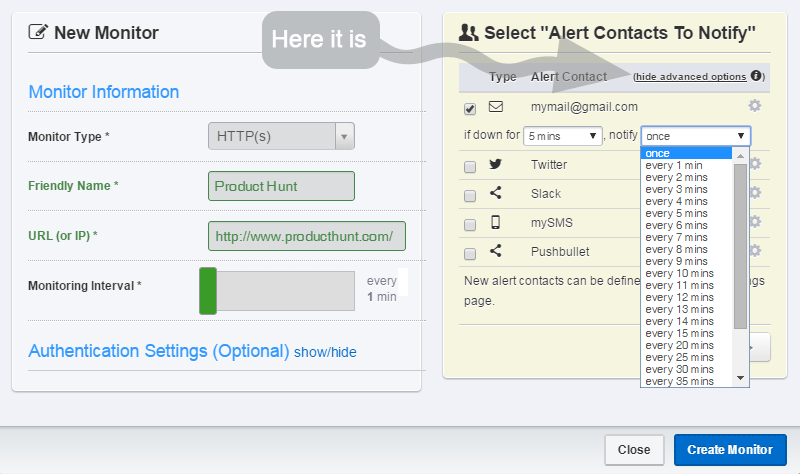
In the “add/edit monitor dialogs”, you’ll see a “show advanced options” option. Once clicked, it’ll display a “settings icon besides each alert contact” and clicking them will be showing the options.

And, the interface will remember whether “the advanced options are shown or hidden for any future add/edit monitor actions” to ease the usage.

Additionally, the feature can be applied to all monitors in bulk using the “Bulk Actions” (that can be found just under the “Add Monitor” button).

Need the Pro Plan?

Besides this advanced notification options, the Pro Plan supports 1-minute monitoring for faster downtime detection and 1 year of stats (and, it is still offered with the introductory pricing).

Start using UptimeRobot today.

Join more than 2M+ users and companies!

  • Get 50 monitors for free - forever!
  • Monitor your website, server, SSL certificates, domains, and more.
  • Create customizable status pages.

Written by

Tomas Koprusak

Product Owner |

He has worked for Sygic as a marketer and co-led the implementation and development of a product acquired from a competitor. He has also worked as a freelance developer, helping clients from various areas. Tomas brings a wealth of industry experience to our team. He spent a few years in the blockchain industry, leading projects and marketing teams at multiple blockchain-based companies. He has presented products and managed deals in more than 10 countries around the world, managed the ICO, and built a successful marketing team at Fuergy that continues to thrive. Tomas managed a product team for the biggest job site in Slovakia, covering development and transformation to a new B2B app. Not only is Tomas skilled at web development, but he also has a deep understanding of SaaS businesses, which makes him an invaluable asset in shaping and leading various projects at UptimeRobot. His focus is always on the continual improvement of our service and user experience. In addition to his professional achievements, Tomas is a devoted father. His personal interests include cycling (he traveled around the whole country of Slovakia), playing guitar (he even played in a band), servicing bikes, music, and enjoying good beer.

Feature suggestions? Share

7 Comments

Jon Apr 8, 2015 at 11:27 pm

This is great! keep up the good work.

Jon Apr 10, 2015 at 11:27 pm

After changing all of my monitors I wish there was a way to set it so that you could have a default set so that if you wanted to change them all on mass you can.

Umut Muhaddisoglu Apr 10, 2015 at 11:27 pm

That is actually possible using the "Bulk Actions" that can be reached through the link just under the "Add Monitor" button.

Mike May 5, 2015 at 1:49 pm

It still only notifies me once, even after I set it to notify every 5 minutes. Is this just broken or am I doing something wrong?

Umut Muhaddisoglu May 6, 2015 at 1:49 pm

The feature is working ok. Yet, can you share any details with us (support@uptimerobot.com) to see if it is a configuration issue?

Denes Viktor Feb 20, 2019 at 1:31 pm

Where is this feature?

Umut Muhaddisoglu Mar 13, 2019 at 1:31 pm

It can be reached from the settings/gear icon besides each alert contact in Add/Edit Monitor dialogs (in the Pro Plan).

Recent Articles

Recent Articles

Table of Contents