We’re happy to introduce you to the first agentic uptime monitoring setup!
Now your AI agents can continue their coding, testing, and deploy flows into setting up the monitors, including a free account.
The agent submits your site’s URL and your email, you confirm with one click in the email you receive, and you have a working monitor plus a free account.
No registration form, API key, or dashboard configuration needed.
Try it now
Open your agent and paste this:
"Set up uptime monitoring for [your site] with UptimeRobot's agent flow. My email is [your email]."Check your inbox and click once to confirm.
Then just let UptimeRobot take it from there.
Here is the whole flow, start to finish, in six minutes.
What you get
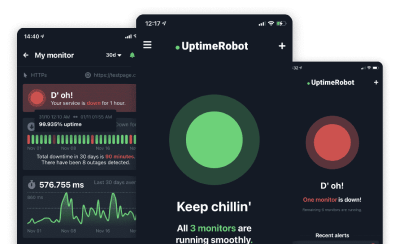
A live HTTPS monitor checking your site every 5 minutes for free. It’s a real forever-free plan, not a trial.
You’ll get 50 monitors (HTTP, Ping, Port and Keyword), a public status page, iOS and Android apps and alerts by email plus five integrations (Google Chat, Discord, Pushover, Pushbullet, and Splunk).
It’s free for commercial use
UptimeRobot’s free plan is available for any use, including commercial and business use.
No personal-only restriction, no credit card entry required. Freelancers monitoring client sites, startups, and companies running production services all run on it. Your plan stays free as long as you’re inside the 50-monitor limit, 5-minute checks, and our Fair Use Policy.
How it works
- You tell your agent something like “set up uptime monitoring for mysite.com”.
- The agent finds the instructions in our llms.txt and agent-skills files.
- It solves a small proof-of-work puzzle. A few seconds of compute for any code-capable agent.
- It submits your URL and your email to our API.
- You click Activate in the confirmation email. The monitor goes live.
Monitoring doesn’t begin until you confirm the request.
Why the puzzle and the email?
Letting software create accounts is an abuse vector if you are careless about it. So we built three gates in.
The proof-of-work puzzle costs real compute before an agent can submit anything, which makes bulk spam expensive.
The confirmation email means nothing is created in your name until you click Activate, so an agent can’t silently create an account or a monitor under an email you didn’t approve.
Every submission returns the same 200 response, so an agent cannot probe whether an email already has an account. Only a bad proof-of-work returns a 400.
Which path is yours
- Code-capable agents. Claude Code, Cursor, MCP-enabled assistants, and CI scripts use the API directly. The instructions live in llms.txt and the quick-monitor-setup skill in our public repo at github.com/uptimerobot/ai.
- Chat assistants and humans. No code execution needed. Open the quick-start link and your browser solves the puzzle for you. You still confirm by email.
- Developers who want the details first. The full flow, endpoints, and anti-abuse design are in the quick monitor setup guide, with the endpoint reference on the AI agent monitoring page. Trying it takes about 30 seconds.
-
Whether your URL responds, how fast, and with what status code. Your agent sets up an HTTPS monitor, so you get an alert when the page stops loading, slows down, or comes back with the wrong status.
You’re not stuck with HTTPS. The free plan also runs ping, port, and keyword monitors, answering the questions is the host reachable, is the port open, and is the expected word still in the response body.
Checks run every 5 minutes from 15+ global locations. An alert fires only when several locations agree, so you get fewer false positives. -
No. The agent sends a URL and an email address. That’s all it sends and all it gets. It has no API key, no password, and no login. The account belongs to whoever clicks Activate, and the agent can’t read your monitoring data or change your settings afterwards.
-
Yes. It’s three HTTP calls and a SHA-256 loop, so any CI script can run it. You could have it create a monitor for a preview environment when that environment deploys. The activation email still goes to whoever owns the address you submit, so nothing starts monitoring until a human clicks.
-
The monitor keeps running and alerting you. A password is how you log in to see incident details and change settings, but nothing stops if you don’t set one. You can set a password whenever you want.