TL;DR (QUICK ANSWER)
Free Active Directory tools cover most admin, reporting, auditing, security, and cleanup tasks if you choose them by use case and accept manual workflows and limited automation.
Use built-in Microsoft tools for management, PowerShell for bulk and repeatable tasks, targeted utilities for reporting and replication, and posture scanners for security reviews.
Add basic availability monitoring so domain controller or LDAP outages are visible immediately.
Active Directory still runs identity, access, and policy control in most Windows environments. Daily tasks like creating users, reviewing privileged groups, checking replication, or cleaning up inactive accounts cannot be optional.
Many free Active Directory tools are reliable for management, reporting, security checks, and cleanup when chosen by task.
This article breaks down the best free Active Directory tools by real admin use cases. You will see what each tool does well, where it falls short, and when it makes sense in small, mid-sized, or growing environments.

Key takeaways
- Free AD tools fall into management, reporting, and security categories
- Built-in Microsoft tools remain powerful when used properly
- Free commercial editions usually include limits
- Open source tools require more effort but offer flexibility
- Free tools work well for small to mid-sized environments
The different kinds of Active Directory tools
Not all free Active Directory tools are the same. Some are fully free utilities. Some are open source projects. Others are commercial products with restricted free editions.
While the license price might be $0, every tool has a Total Cost of Ownership (TCO).
- Completely free (Native): These are the “old reliables.” The cost here is time. Because they lack automation, you pay in man-hours. If it takes an admin 20 minutes to manually deprovision a user across five systems using ADUC, that’s a “hidden” labor cost.
- Open source: The cost here is expertise. You don’t pay a vendor; you pay for a highly-skilled engineer who understands how to compile, patch, and secure something like Samba. If that person leaves, the “free” tool becomes a liability.
- Commercial free tiers: The cost here is future leverage. Free tiers are designed for limited environments. An upgrade becomes necessary as object count or automation needs increase.
Completely free tools
Most free tools come from Microsoft or security-focused vendors.
Examples include:
- Active Directory Users and Computers
- Active Directory Administrative Center
- PowerShell ActiveDirectory module
- PingCastle
- AD Explorer
These tools usually focus on one task. They rarely include dashboards, automation, or scheduled reporting, and work best for manual administration, periodic audits, and targeted security checks.
Open source tools
Open source AD tools are community-maintained and distributed under public licenses. You can modify them, extend them, and run them without vendor restrictions.
Examples include:
- Samba
- LDAP Account Manager
- Apache Directory Studio
Open source tools offer flexibility, but they require internal expertise. Updates, compatibility testing, and troubleshooting fall on your team. There is usually no commercial support.
They make sense in Linux-heavy or highly customized environments.
Commercial tools with limited free editions
Some vendors offer free editions of paid Active Directory platforms. These versions are functional but restricted.
Common limitations include:
- User or object count caps
- Read-only reporting
- Limited retention
- No automation or scheduling
- No multi-domain support
These tools are useful for small domains, labs, or evaluations. They rarely scale well beyond that.
When free tools are enough
Free tools are enough when:
- You manage a single domain
- Tasks are manual and infrequent
- You do not need centralized reporting or automation
Many small to mid-sized IT teams operate successfully using only native tools, plus a few security scanners.
Free vs. open source vs. free tier comparison
| Type | Cost | Automation | Scalability | Support | Best for |
| Completely free | Free | Minimal | Small to mid | Community or none | Manual admin and security checks |
| Open source | Free | Customizable | Depends on deployment | Community | Flexible or Linux-centric setups |
| Free tier of a paid tool | Free with limits | Restricted | Limited by caps | Vendor documentation | Small domains or testing |
How to choose the right free Active Directory tool
Choosing a tool based only on features can lead to “tool sprawl”, or a collection of disparate utilities that don’t talk to each other. Before downloading any binary, evaluate your needs against five criteria.
1. Size of your environment
Environment size determines whether free tools remain practical.
- Small AD (Single domain, <500 Objects): Native Microsoft tools (ADUC, ADAC) and lightweight “free tier” commercial tools are usually sufficient. The manual effort required to manage a few hundred users is low.
- Large enterprise (Multi-forest, >5,000 Objects): Avoid tools with object caps. At this scale, PowerShell is your only true “free” friend, as GUI-based free tools often lag or crash when querying large databases.
If performance slows or queries time out, the tool is not built for your scale.
2. Primary task
Identify your “80/20” problem. What takes 80% of your time?
- Reporting: If you need to hand a PDF to an auditor, look for “Free Tiers” of commercial products (like AdminDroid or Netwrix) which offer polished, pre-built reports.
- Security audit: Tools like PingCastle or Purple Knight are best here. They don’t “manage” AD; they scan it for vulnerabilities and give you a risk score.
- Cleanup: Use specialized utilities to find inactive accounts. Native tools are notoriously bad at identifying “stale” metadata.
- Monitoring: If you need real-time alerts, native Windows Event Logs are free but noisy. Teams opt for monitoring tools with built-in port monitoring and incident management to turn service failures into actionable alerts.
Match the AD tool to the dominant task. Do not expect one free tool to handle reporting, monitoring, and security equally well.
3. Skill level required
Tool selection should reflect operator experience.
- Help desk or junior admins: GUI-based tools with restricted scope reduce risk. Avoid utilities that require broad privileges or complex scripting.
- Senior engineers: The PowerShell ActiveDirectory module provides maximum flexibility. It is free, but it requires scripting knowledge and operational discipline.
If your team cannot maintain scripts, “free” automation may introduce troubleshooting overhead.
4. One-time audit vs ongoing operations
Free Active Directory tools do well at periodic reviews.
Examples:
- Annual security assessment
- Pre-migration cleanup
- Quarterly privileged group review
The best free Active Directory management tools
Day-to-day Active Directory management includes creating and modifying users and groups, adjusting permissions, and cleaning up stale accounts.
The Active Directory management tools below help you handle those tasks without paid licenses. Some are native Microsoft utilities. Others are open source or lightweight third-party options.
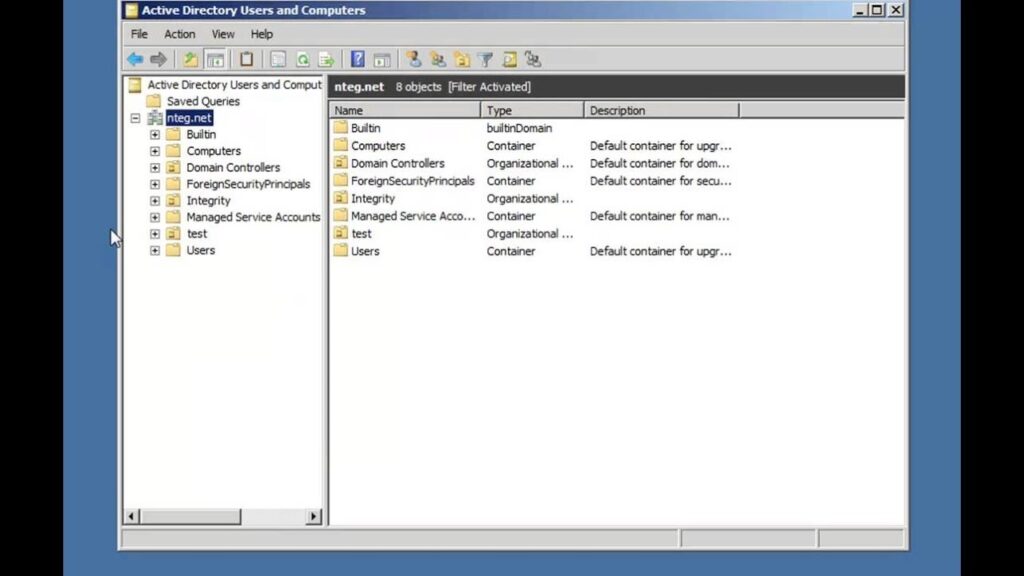
Active Directory Users and Computers (ADUC)
Source: YouTube.com
Active Directory Users and Computers (ADUC) is the built-in Microsoft management console for user and group administration. It’s the “classic” MMC (Microsoft Management Console) snap-in that has remained virtually unchanged since Windows 2000.
→ Short description: A lightweight, stable interface for managing users, groups, and computers.
→ Best for: Quick, manual “one-off” changes (e.g., a single password reset or moving a user between OUs). Basic AD object management in small to mid-sized domains.
→ Key features: Drag-and-drop OU management, “Advanced Features” view for hidden attributes, and the Delegation of Control wizard.
→ Limitations: No automation; cannot manage modern features like the Recycle Bin or Fine-Grained Password Policies (FGPP).
→ Skill level: Beginner
ADUC remains the foundational tool for most admins. It is widely understood and installed with RSAT on Windows clients and servers.
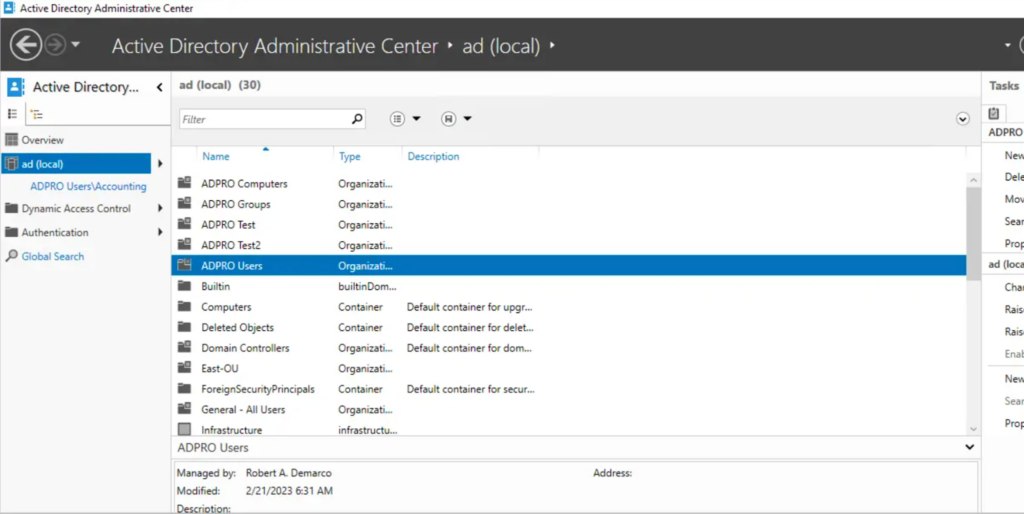
Active Directory Administrative Center (ADAC)
Source: activedirectorypro.com
Active Directory Administrative Center (ADAC) is a Microsoft management console that improves on ADUC with task history and enhanced filtering.
ADAC was introduced as the “modern” successor to ADUC, built entirely on top of PowerShell.
→ Short description: A task-oriented management console with a more modern UI.
→ Best for: Admins who want a GUI but need access to advanced features like the Recycle Bin.
→ Key features: PowerShell History Viewer (shows the exact code for every click you make), Global Search across the entire forest, and easy FGPP configuration.
→ Limitations: Slower and more resource-intensive than ADUC; the interface can feel “clunky” during heavy use.
→ Skill Level: Intermediate
ADAC is useful when ADUC feels too primitive. It is installed with RSAT and provides a smoother workflow for complex queries.
PowerShell AD Module
The PowerShell Active Directory module provides command-line control of AD objects and workflows. It’s considered the ultimate “power tool” for any Active Directory environment.
→ Short Description: A library of cmdlets that allow for direct programmatic interaction with the directory.
→ Best for: Bulk operations (e.g., “Disable all users who haven’t logged in for 90 days”) and automated onboarding.
→ Key features: Pipeable commands, ability to export/import CSVs directly, and deep integration with other Microsoft services (M365/Entra).
→ Limitations: No “Undo” button; a single typo in a script can result in a catastrophic mass deletion.
→ Skill level: Expert
PowerShell is the most versatile free option for repetitive tasks and large environments. It scales well because it avoids GUI limitations.
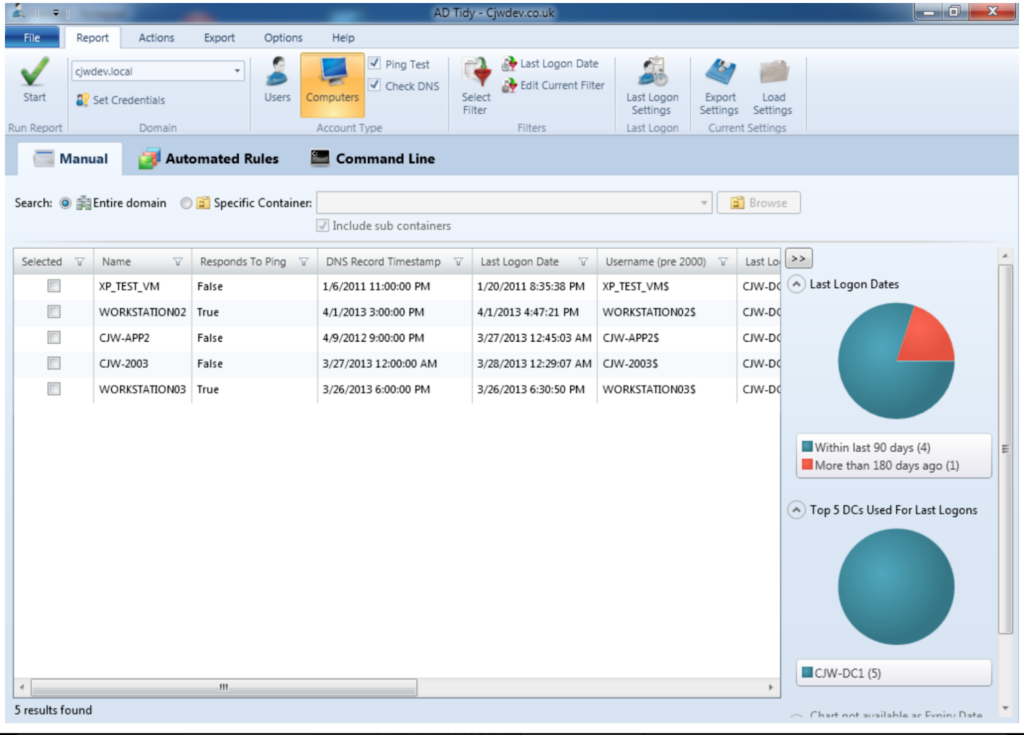
AD Tidy (Free mode)
Source: cjwdev.co.uk
AD Tidy scans a domain for stale or unused accounts and allows export of findings.
→ Best for: Admins who need to identify accounts that may be candidates for cleanup.
→ Key features: Filters by last logon, disabled status, and password age, exporting results to CSV, simple interface for reviewing targets
→ Limitations: Free mode is read-only, there is no automation or scheduling, not suited for real-time changes
→ Skill level: Beginner
AD Tidy is a quick way to spot cleanup opportunities. It does not change anything in AD in free mode, which makes it safe for audits.
| Tool | Bulk operations | Automation | Scheduled tasks | Reporting | Skill level |
| ADUC | Limited | None | No | None | Beginner |
| ADAC | Moderate | None | No | None | Intermediate |
| PowerShell | Full | Yes | Yes | Yes (via scripts) | Advanced |
| AD Tidy | Read only | No | No | Export only | Beginner |
Free Active Directory reporting and auditing tools
If you’re managing Active Directory (AD), you need visibility into what’s happening across your domain: who made changes, when, and where.
Reporting and auditing tools help track user activity, group membership changes, permissions, and more. While enterprise-grade solutions like Quest or Netwrix offer deep features, several free tools can still give you solid reporting and audit capabilities without the price tag.
Here’s a breakdown of free tools worth considering, what they do well, and how to use them effectively.
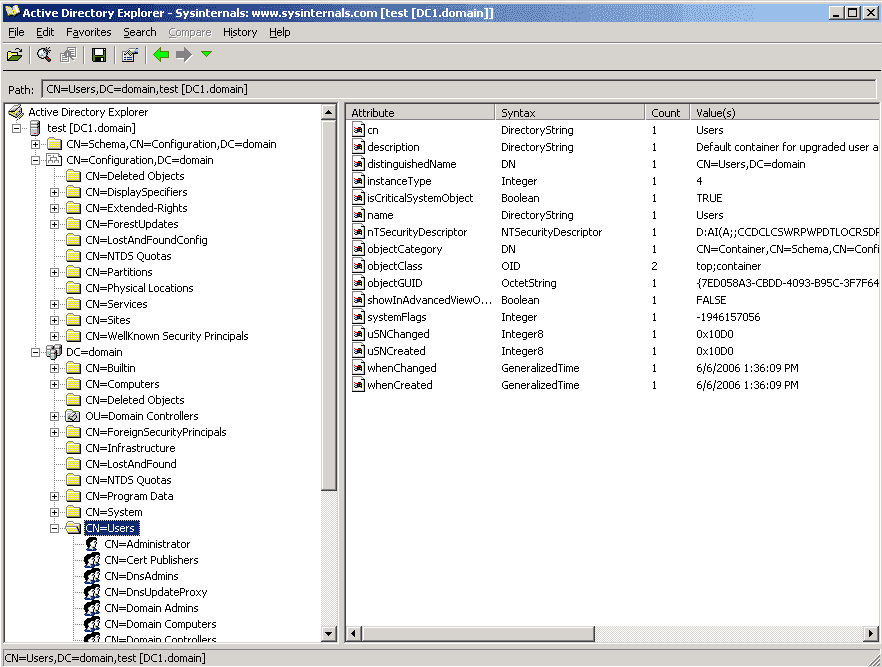
Microsoft Active Directory Explorer (ADExplorer)
Source: 4sysops.com
AD Explorer from Microsoft Sysinternals is a directory browser that allows you to inspect objects and take snapshots of the directory.
It also lets you navigate your AD database like a file system. This makes it useful for detecting changes to users, groups, and organizational units (OUs).
→ Use case: Browsing and snapshot-based auditing
→ Key features:
- View and search AD objects with a GUI
- Take and compare snapshots to detect changes
- Bookmark frequently accessed objects
→ Limitations: It doesn’t alert or log changes in real time. You’ll need to manually take snapshots and compare them.
→ Skill level: Intermediate
AD Replication Status Tool (ADReplStatus)
Source: semperis.com
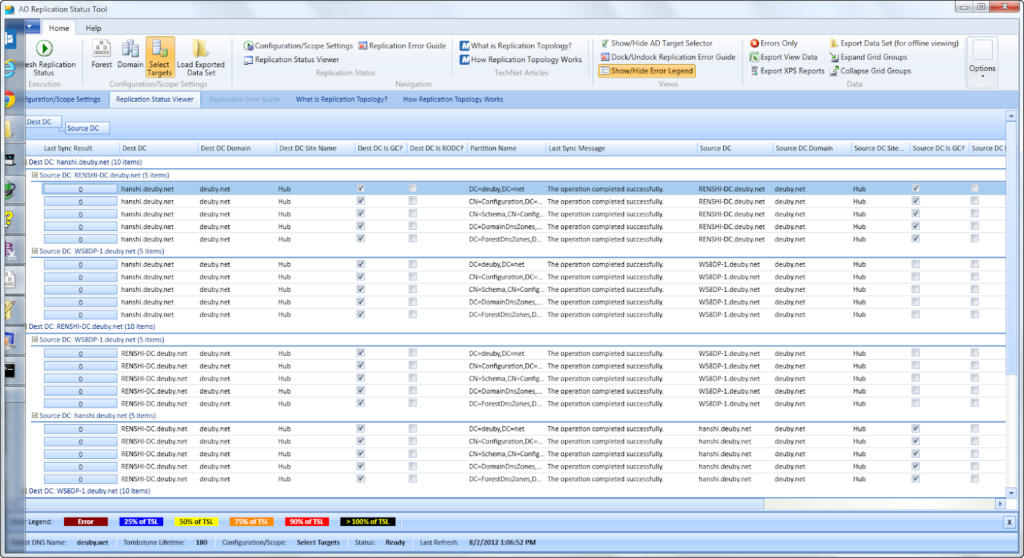
The AD Replication Status Tool provides a visual summary of domain controller replication health.
ADReplStatus identifies which Domain Controllers are failing to sync and provides the specific error codes causing the delay, which helps prevent “Lingering Objects” or authentication issues.
→ Use case: Monitoring and troubleshooting Domain Controller synchronization
→ Key features:
- Auto-discovers all Domain Controllers in the forest.
- Identifies specific replication errors with links to Microsoft resolution articles.
- Exports replication status to Excel for easy sharing with team leads.
→ Limitations: Focused strictly on replication; it cannot report on user activity or security configurations.
→ Skill level: Intermediate
Permissions Reporter (Free Edition)
Source: 4sysops.com
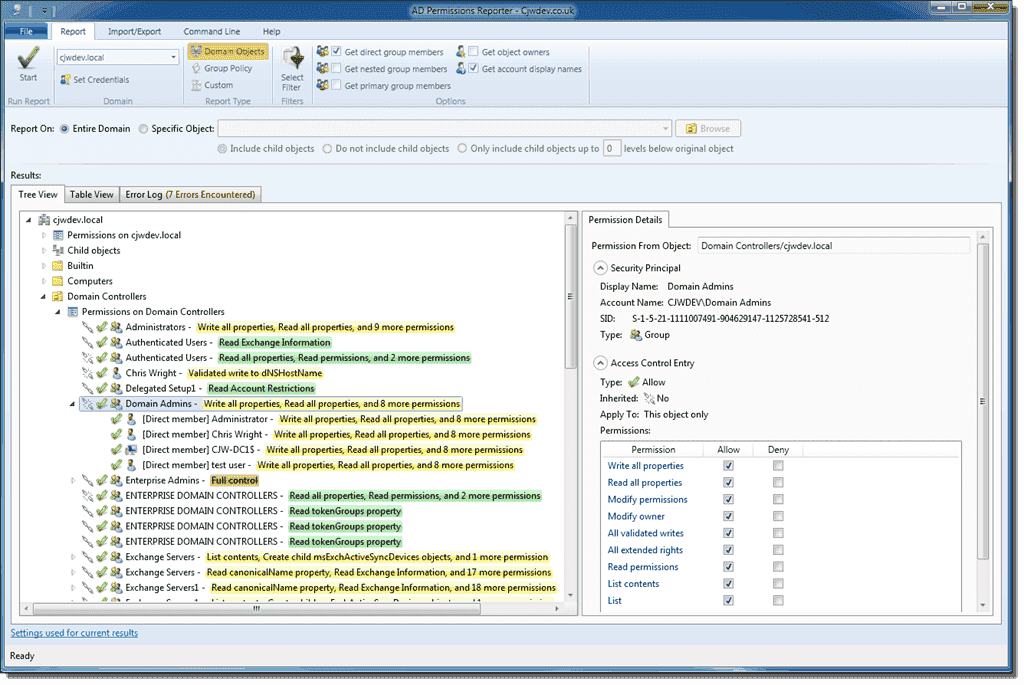
Permissions Reporter focuses on access reporting for AD and file systems.
It scans your directory or file servers and presents a clean report of who has effective permissions. It shows exactly which users have access to sensitive data, even if they are buried inside multiple groups.
→ Use case: Auditing file system and object access rights
→ Key features:
- Visualizes permissions in a tree or table view.
- Expands group memberships to show the actual users inside.
- Filters for “Rogue Permissions” that don’t conform to company standards.
→ Limitations: The free version typically restricts exports to HTML format and lacks automated report scheduling.
→ Skill level: Beginner
Netwrix Auditor Community Edition
Source: netwrix.com
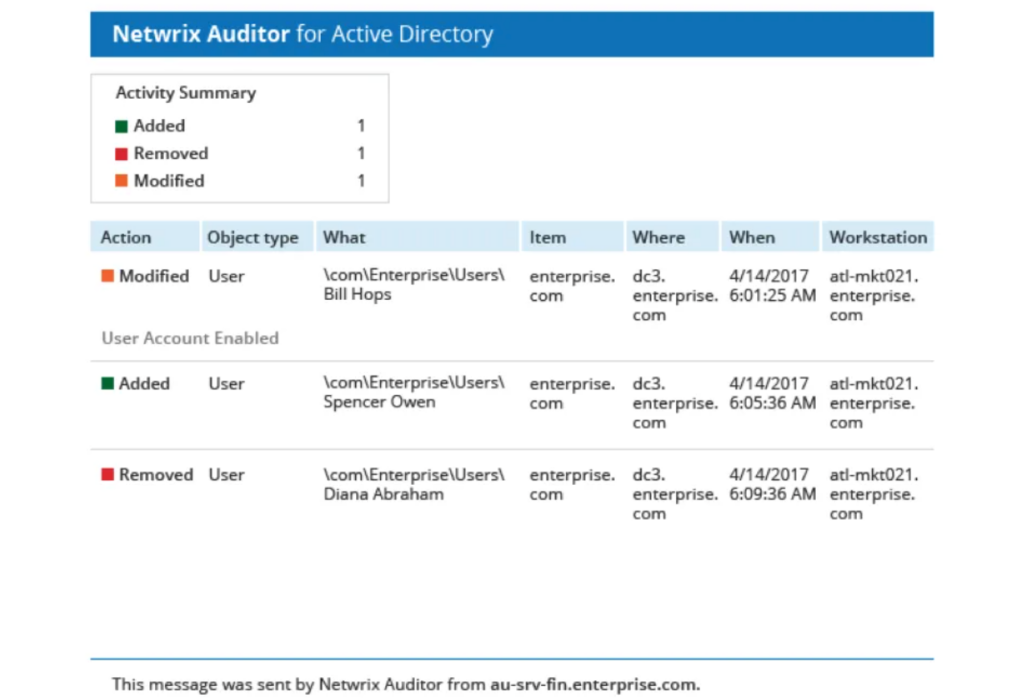
Netwrix Auditor Community Edition provides limited-scope change auditing.
Netwrrix monitors your environment, sends a daily summary to your inbox, and details every change made to users, groups, and GPOs (Group Policy Objects), along with the “before” and “after” values of the change.
→ Use case: Automated daily change tracking and “Who, What, When” reporting.
→ Key features:
- Daily email summaries of all AD and Group Policy changes.
- Shows “Before” and “After” values for every modified attribute.
- Tracks all successful and failed administrative logons.
→ Limitations: Very short data retention (24 hours) in the free version; no real-time alerting.
→ Skill level: Beginner
Purple Knight
Source: helpnetsecurity.com
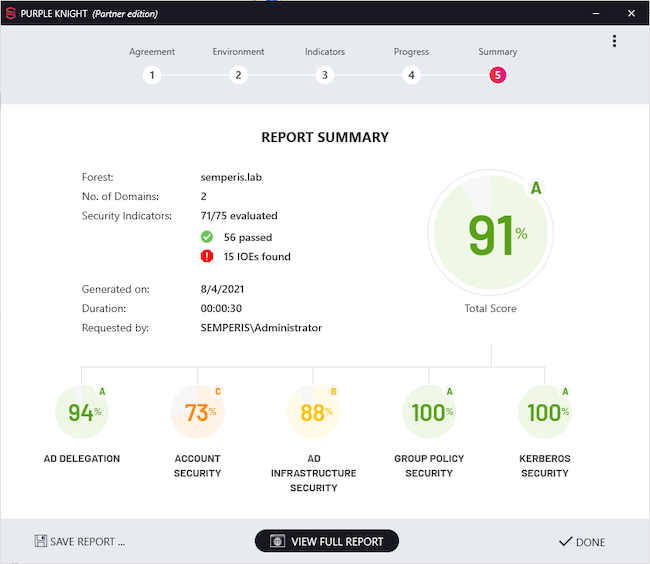
Purple Knight is a security-first tool that scans your environment for over 150 indicators of Exposure. Purple Knight gives your Active Directory a “Letter Grade” (A-F) and provides a prioritized list of what to fix to prevent a ransomware attack.
→ Use case: Rapid security posture assessment and vulnerability scoring.
→ Key features:
- Maps vulnerabilities to the MITRE ATT&CK framework.
- Scans for complex attacks like Kerberoasting and DCShadow.
- Requires zero installation and no administrative privileges to run.
→ Limitations: It is a “point-in-time” scan only; it does not provide continuous monitoring or automatic remediation.
→ Skill level: Intermediate
AD Info
Source: cjwdev.com
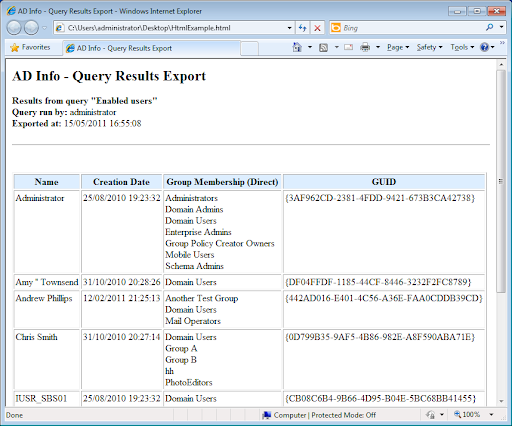
AD Info is a query tool designed for admins who need to answer specific questions quickly, such as “Which users have passwords that never expire?” or “Which computers haven’t logged in for six months?”
→ Use case: General inventory and “quick win” cleanup reporting.
→ Key features:
- Includes over 190 pre-built reports out of the box.
- Extremely fast querying of large datasets.
- Easy one-click reports for common cleanup tasks.
→ Limitations: The UI is dated, and the tool is strictly read-only; you cannot make changes from within the reports.
→ Skill level: Beginner
| Tool | Inactive users | Privileged groups | Password policy review | Replication health | Change tracking | Ease of use |
| AD Explorer | Low | Low | Low | None | Manual snapshot | Moderate |
| ADReplStatus | None | None | None | High | None | Moderate |
| Permissions Reporter | Medium | High | Low | None | None | High |
| Netwrix Community | Medium | High | Medium | None | Daily only | High |
| Purple Knight | Low | High | High | None | None | Moderate |
| AD Info | High | High | Medium | None | None | High |
Free Active Directory security and health check tools
Security tools answer a different question than reporting tools.
Reporting tools tell you what exists and what changed.
Security tools evaluate risk exposure, misconfiguration, and attack paths.
They analyze your environment against known attack techniques, privilege escalation risks, and password weaknesses.
Common risks that Active Directory security and health check tools identify:
- Privilege escalation paths: Unintended delegated rights, excessive group nesting, or accounts with administrative permissions that were never reviewed.
- Credential exposure: Accounts with weak passwords, passwords found in breach databases, identical admin and user passwords, or “Password never expires” settings.
- Delegation and trust misconfiguration: Unconstrained delegation, insecure cross-domain trusts, or legacy authentication protocols that are still enabled.
- Configuration drift: Domain Controllers that no longer match recommended security baselines due to manual changes or outdated policies.
- Stale or high-risk objects: Inactive privileged accounts, unused service accounts, or orphaned objects that increase attack surface.
These tools assess exposure based on configuration state. They do not monitor user behavior in real time.
PingCastle
Source: ssw.com
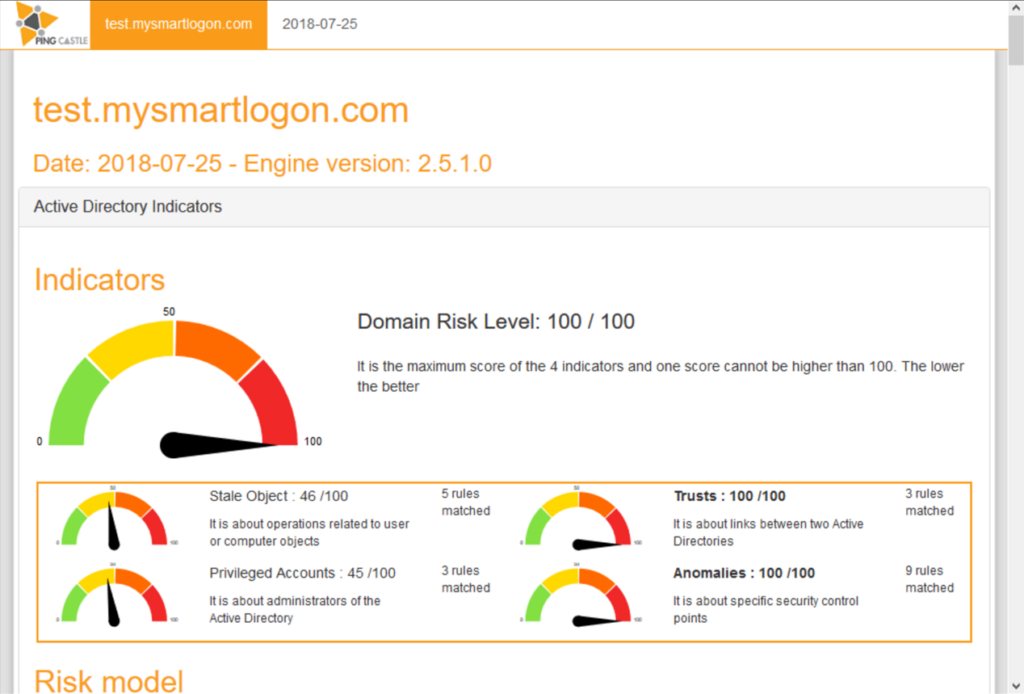
PingCastle is a free Active Directory security assessment tool that scans your domain and generates a structured risk report.
PingCastle generates a comprehensive report that gives your domain a risk score (0–100) across four categories: Stale Objects, Privileged Accounts, Trusts, and Anomalies.
→ Best for: Quarterly security posture reviews and privilege exposure analysis.
→ What it detects:
- Excessive privileged group membership
- Unconstrained delegation
- Weak or misconfigured trust relationships
- Legacy protocol exposure
- Dangerous ACL configurations
- Inactive but privileged accounts
The report includes a “heat map” of risks and a timeline of potential attack paths. It’s agentless and doesn’t require elevated privileges, which makes it it easy to run in production environments.
→ Key features:
- Risk score across multiple categories
- Prioritized remediation guidance
- Trust relationship mapping
- Exposure grouped by risk level
→ Limitations: Manual execution only, no scheduling in the free version, no continuous monitoring, no automatic remediation
→ Skill level: Intermediate
Specops Password Auditor
Source: specopssoft.com
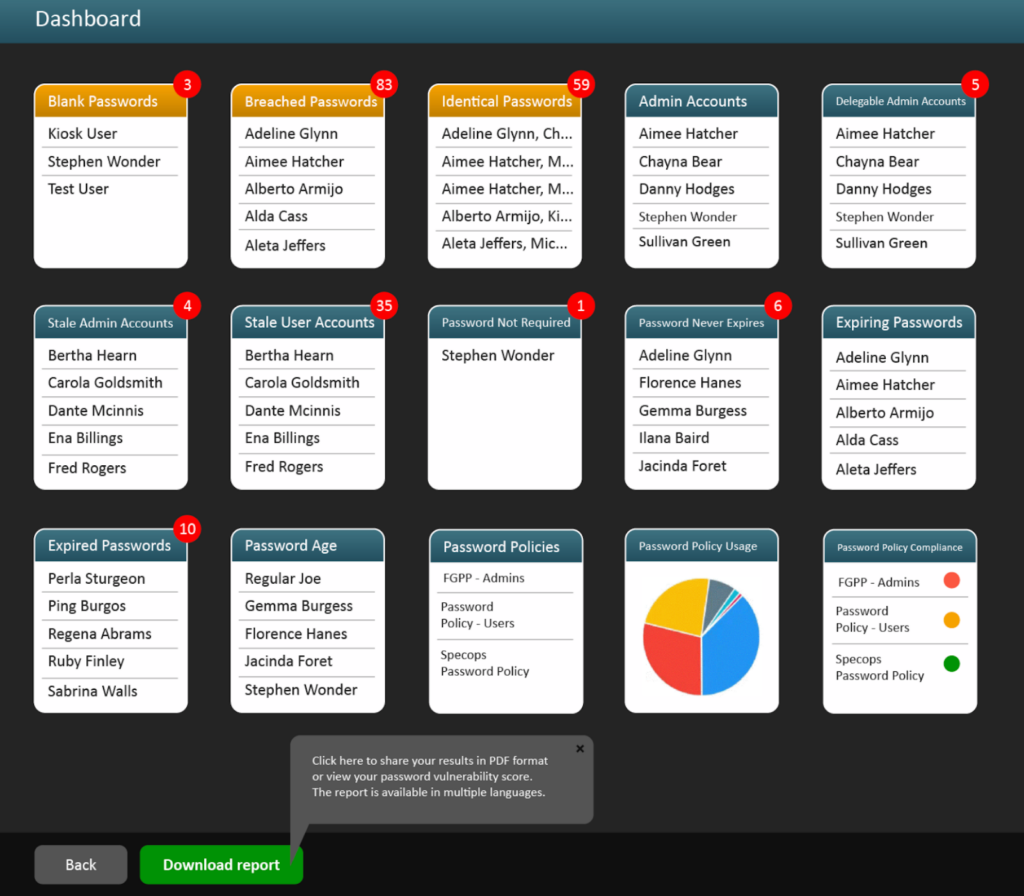
Specops Password Auditor is a free, read-only password hygiene analysis tool.
Specops Password Auditor is a read-only tool that specifically targets the most common point of entry: credentials. It compares your AD password hashes against a database of over 1 billion breached passwords without ever exposing your clear-text data.
→ Best for: Identifying weak, reused, or breached passwords in Active Directory.
→ What it detects:
- Accounts using breached passwords
- Weak password length distribution
- Identical passwords across accounts
- Accounts with Password Never Expires
- Stale service accounts
→ Key features:
- Breached password comparison using hash matching
- Password policy compliance scoring
- Clear summary reporting
→ Limitations: No enforcement capabilities, no blocking of breached passwords, no automation
→ Skill level: Beginner to Intermediate
Microsoft security baselines and analyzers
Microsoft provides Security Baselines (pre-configured GPOs) and tools like the Policy Analyzer to ensure your Domain Controllers are hardened according to the latest threat intelligence.
Best for: Domain Controller configuration validation and hardening review.
What they detect:
- Missing or weak security policy settings
- Inconsistent Group Policy enforcement
- Legacy protocol enablement
- Deviation from Microsoft hardening baselines
Key tools include:
- Security Compliance Toolkit
- Policy Analyzer
- Baseline GPO templates
- LGPO.exe
Limitations: Manual comparison and interpretation required, potential disruption if applied without testing, no centralized dashboard
Skill level: Advanced
How often to run security and health checks in Active Directory?
Security posture changes over time. New users, new trusts, and policy updates introduce risk.
A practical cadence looks like this:
Daily: Verify backups and use uptime monitoring to confirm domain controllers, LDAP, and DNS services are reachable.
Quarterly: Run a full security posture scan (e.g., PingCastle or Purple Knight) to review overall risk score and privilege exposure.
Monthly: Review password hygiene and stale account findings.
After major changes:
Run a scan after:
- Domain functional level upgrades
- Trust creation
- Large onboarding waves
- Security incidents
Free tools are typically manual. If checks do not run on a schedule, risk accumulates unnoticed.
Why do AD security tools differ from reporting tools?
Reporting tools describe the state. Security tools evaluate risk.
A reporting tool answers:
- Who is in the Domain Admins group?
- Which users have not logged in for 90 days?
A security tool answers:
- Is that group membership creating an escalation path?
- Does that stale account increase credential exposure risk?
Reporting supports visibility. Security tools support risk reduction. Both are necessary, but they serve different purposes.
Open source Active Directory tools worth considering
Open source Active Directory tools provide flexibility and cost savings, but they shift responsibility to your internal team.
They work best in environments that already rely on Linux, scripting, or custom workflows.
Samba (AD Domain Controller Mode)
Source: https://arenanewline.weebly.com/
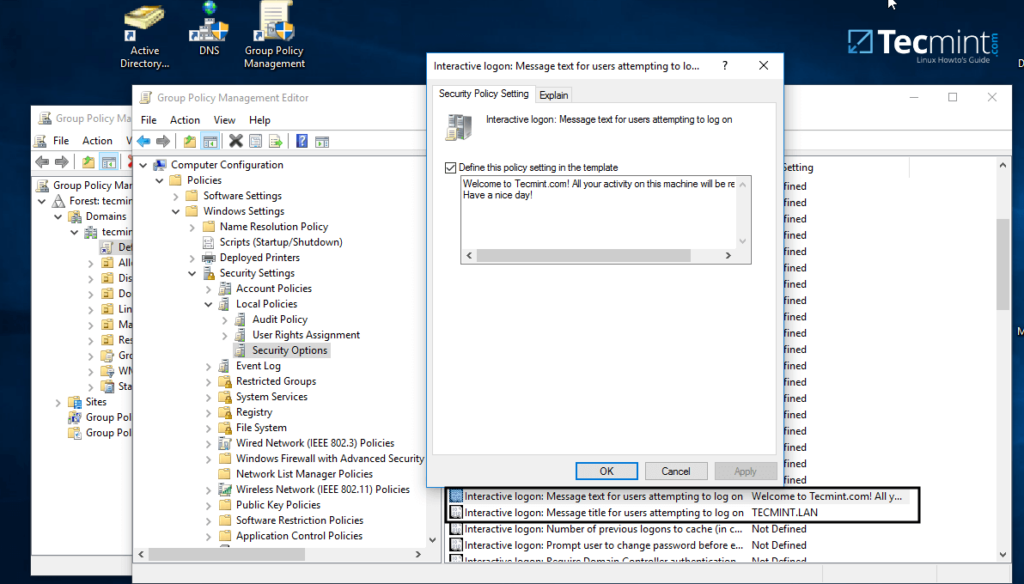
Samba (AD Domain Controller Mode) is the most well-known open-source AD project. Samba allows a Linux server to act as a full Active Directory Domain Controller, supporting Group Policy, Kerberos authentication, and DNS.
→ Use case: Replacing or extending Windows-based Domain Controllers in Linux-heavy environments.
→ Key features:
- Full compatibility with Microsoft AD protocols (LDAP, Kerberos).
- Allows Linux machines to join the domain natively.
- Supports Group Policy Object (GPO) management for Windows clients.
→ Limitations: Complex to set up compared to Windows Server; lacks some of the newest functional levels (like Server 2022+ features).
→ Skill level: Expert
LDAP Account Manager (LAM)
Source: ldap-account-manager.org
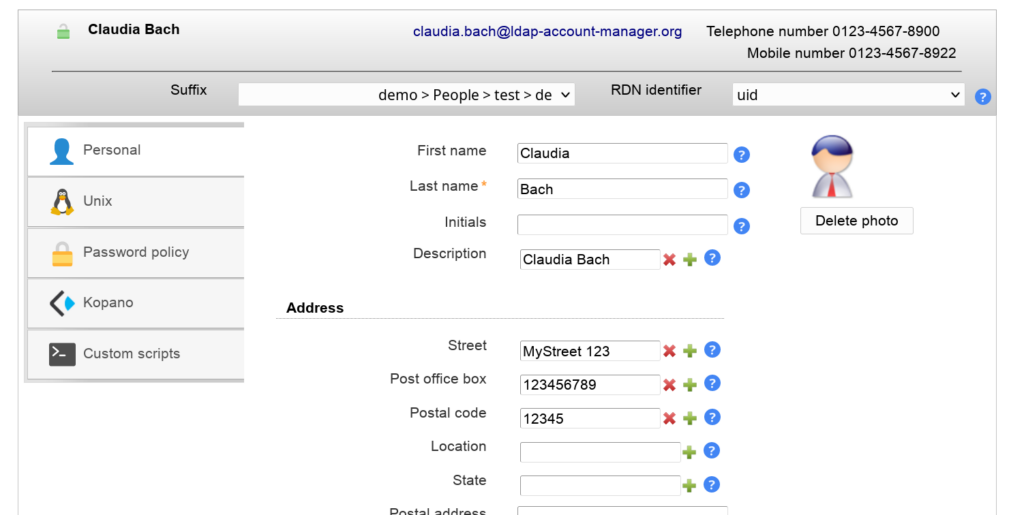
LDAP Account Manager (LAM) provides a high-level graphical interface for managing entries in an LDAP directory (including Active Directory). LAM is perfect for help desk staff who need to manage users but shouldn’t be logging directly into a Domain Controller.
→ Use case: A web-based “cockpit” for managing AD users and groups from any browser.
→ Key features:
- Web-based interface (no RSAT installation required on workstations).
- Bulk user creation and editing via CSV templates.
- Self-service portal for users to edit their own information.
→ Limitations: Does not support advanced AD features like GPO editing or Site/Services management.
→ Skill level: Intermediate
Apache Directory Studio
Source: directory.apache.org
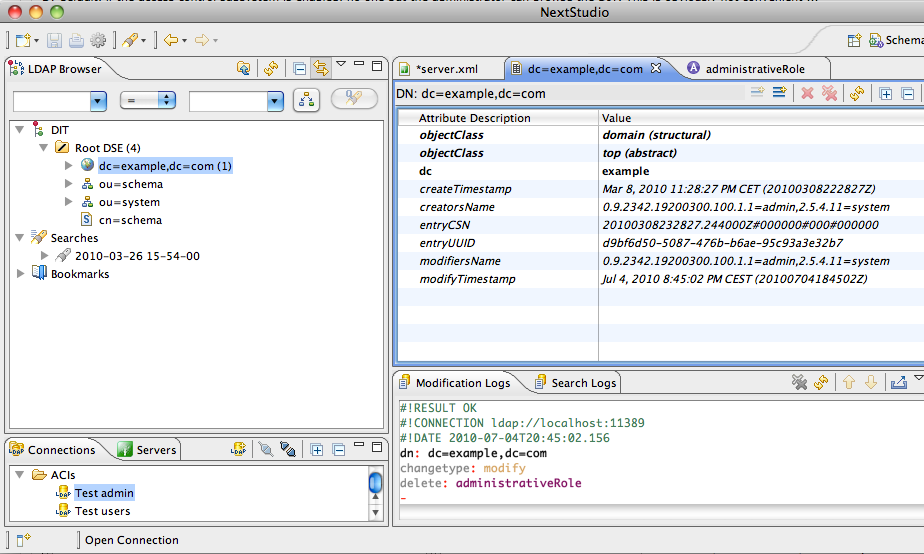
Apache Directory Studio is an Eclipse-based desktop application that works on Windows, Linux, and macOS.
→ Use case: Advanced LDAP browsing and schema development.
→ Key features:
- Schema browser to see exactly how your AD database is structured.
- LDIF editor for importing and exporting massive amounts of directory data.
- Powerful search logs to debug LDAP connection issues from third-party apps.
→ Limitations: Very “developer-focused”; it is easy to accidentally delete critical attributes if you aren’t careful.
→ Skill level: Expert
FreeIPA
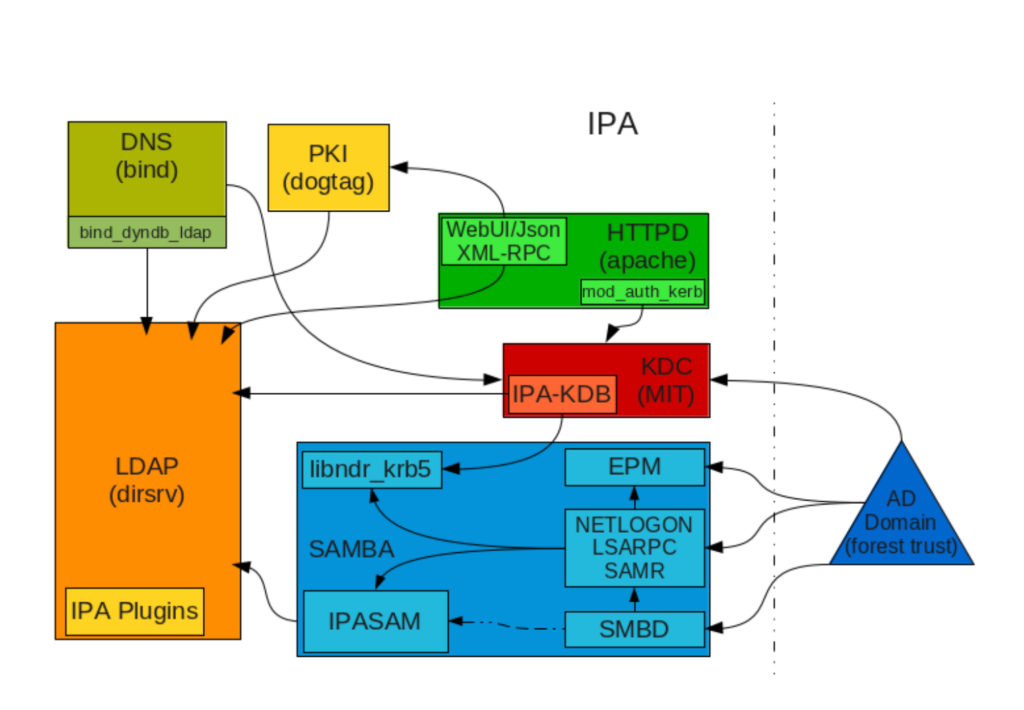
FreeIPA combines LDAP, Kerberos, DNS, and certificate management into a single “Identity Management” (IdM) solution.
While it’s not a drop-in replacement for AD, FreeIPA can integrate with AD domains using cross-forest trust relationships, which allows Linux systems to treat AD users as local entities.
→ Use case: Identity management for Linux environments with AD cross-forest trust.
→ Key features:
- Provides native Kerberos and LDAP for Linux clients.
- Modern dashboard for managing users, hosts, and HBAC (Host-Based Access Control) policies.
- Allows AD users to log into Linux servers using their existing credentials without synchronizing passwords.
→ Limitations: Primarily focused on Linux; it does not support Windows clients or Group Policy management. Cross-forest trusts require significant network and DNS configuration.
→ Skill level: Expert
GOsa²
Source: blends.debian.org
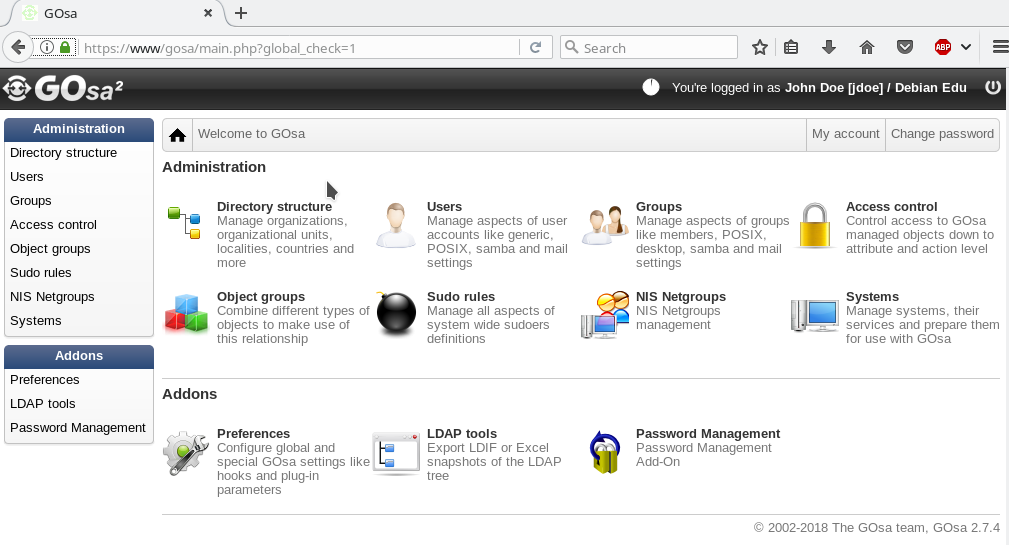
GOsa² is a robust web-based LDAP management tool that supports AD integration through a modular plugin architecture. It is frequently used in large-scale deployments, such as schools and government agencies, where administrators need a customized view of directory data.
→ Use case: Web interface for managing LDAP directories and system deployments.
→ Key features:
- Highly customizable with modules for user management, system deployment, and mail server integration.
- Granular access control that allows §non-IT staff to manage specific subsets of the directory.
- Built-in support for managing Samba-based Windows domains.
→ Limitations: The project has slowed in recent years (many users have migrated to its fork, FusionDirectory). The UI can feel dated and requires a PHP/Web server stack to maintain.
→ Skill level: Intermediate
Strengths and weaknesses of open source AD tools
| Strengths | Weaknesses |
| No vendor lock-in: You own the code; if a company goes bust, your tools still work. | Internal “brain tax”: You need highly skilled staff to maintain and troubleshoot them. |
| Extreme flexibility: Can be scripted and integrated into almost any platform (Python, Java, etc.). | No SLAs: There is no 24/7 support line to call when a sync fails at 2 AM. |
| Transparency: You can audit the code yourself to ensure there are no backdoors. | Slower updates: It may take longer for the community to support the latest Windows Server features. |
Maintenance and support risks
Before adopting an open source AD tool, evaluate:
- Project activity: If commits are infrequent or maintainers are inactive, long-term reliability is uncertain.
- Compatibility with current domain functional levels: Tools may lag behind newer Windows Server releases or hybrid configurations.
- Security review: Third-party code must be evaluated before running against production Domain Controllers.
- Knowledge concentration risk: If only one engineer understands the tool, operational continuity becomes fragile.
Free software still carries operational risk. The cost simply shifts from vendor to internal expertise.
When open source is the right choice
Open source tools are practical when:
- You operate in a Linux-heavy environment
- You require LDAP-level inspection rather than GUI management
- You need custom integrations or scripting flexibility
- You have internal engineering capacity
- Budget constraints prohibit commercial tooling
They are less suitable when:
- Compliance reporting requires retention and audit trails
- Junior staff need guided workflows
- You require vendor-backed support
- Automation and scheduling are mandatory
Open source vs. commercial comparison
| Category | Open Source Tools | Commercial Tools (Free Tier) |
| License cost | Free | Free with limits |
| Object caps | None | Often capped |
| Automation | Custom, script-based | Limited or disabled |
| Support | Community only | Vendor documentation |
| Maintenance | Internal responsibility | Vendor-managed updates |
| Best fit | Technical teams, custom setups | Small domains, evaluation use |
Common limitations of free Active Directory tools
Free Active Directory (AD) tools can be helpful for basic user management, group policy edits, or quick diagnostics.
But once you’re managing more than a handful of users or domains, the cracks start to show. These tools often lack the scalability, automation, and security features needed for modern IT environments.
Here’s where free AD tools tend to fall short in addition to those we’ve covered in other areas.
Basic or missing auditing and reporting
Audit trails are a must for compliance and security. Free AD tools often provide minimal logging, if any. You might get a simple export of user data, but not a full record of who made changes, when, or from where.
For example, if someone adds a user to a sensitive group, you’ll want to know who did it and why. Without proper auditing, you’re relying on domain controller logs or third-party SIEM tools to fill in the gaps.
No role-based access or delegation
In larger teams, you don’t want everyone to have full access to Active Directory. You need to delegate specific tasks, like resetting passwords or managing group memberships, without exposing everything.
Free tools rarely support role-based access control (RBAC). That means you’re either giving junior admins too much access or forcing senior admins to handle every request. Neither is ideal for efficiency or security.
Poor integration with other IT systems
Free tools often operate in isolation. They don’t integrate with ticketing systems, monitoring platforms, or security tools. That limits their usefulness in a broader IT operations workflow.
For instance, if your helpdesk uses ServiceNow or Jira, you probably want AD actions tied to tickets. Without integration, you’ll need to jump between systems and manually update statuses, which slows things down and increases the chance of errors.
Limited support and documentation
When something breaks or doesn’t behave as expected, you’re mostly on your own. Free tools often come with sparse documentation and no official support. You might find a forum post or GitHub issue, but there’s no guarantee of a fix, or even a response.
This becomes a real problem when you’re troubleshooting production issues and can’t afford delays.
When it makes sense to move beyond free tools
Free Active Directory tools handle manual administration and targeted audits well. They become limiting when scale, compliance pressure, and architectural complexity introduce operational risk.
The decision to move beyond free tools is about control, repeatability, and accountability.
Environment size thresholds
There is no universal object limit where free tools stop working. The threshold is operational, not technical.
Free tools begin to strain when you manage:
- More than one domain or forest
- More than 2 to 3 Domain Controllers per site
- More than ~2,000 to 5,000 objects with frequent changes
- Multiple delegated admin teams
At that point, manual group reviews do not scale, CSV exports become unreliable audit evidence, GUI-based tools struggle with large queries, and script maintenance becomes a recurring engineering task
If two administrators cannot confidently answer “Who has effective admin-level access right now?” within minutes, visibility tooling is insufficient.
Compliance requirements
Free tools generate data. They do not provide a governance structure.
Move beyond free tools when you require:
- Long-term audit retention (6 to 12+ months)
- Immutable change logs
- Access certification workflows
- Segregation of duties enforcement
- Evidence suitable for ISO 27001, SOC 2, HIPAA, PCI, or similar audits
For example, a quarterly privileged group review performed manually in Excel is not the same as a documented, traceable certification cycle with sign-offs and retention.
Auditors do not accept “we ran PingCastle last quarter” as proof of control. They expect:
- Documented procedures
- Scheduled reviews
- Retained reports
- Access approval traceability
Free tools assist compliance. They do not enforce it.
Time vs. cost tradeoffs
The hidden costs include:
- Script development time
- Manual report consolidation
- Repeated export formatting
- Cross-team coordination
- Troubleshooting edge cases
If an engineer spends 4 to 6 hours per month preparing audit reports, 2 hours per week reviewing stale accounts manually, and ad-hoc time reconciling privilege sprawl, that labor cost exceeds the price of structured tooling.
Operational maturity often requires automation, even when budgets resist it.
Hybrid and cloud complexity
Modern identity rarely exists in a single plane. Hybrid environments introduce:
- On-prem Active Directory
- Microsoft Entra ID (Azure AD)
- Conditional Access policies
- Cloud application role assignments
- Service principals and API permissions
Free on-prem tools do not correlate privileges across these systems.
Example risk scenarios that free tools struggle to surface:
- An on-prem admin account synchronized to Entra ID with Global Administrator rights
- A stale on-prem service account that still holds cloud API permissions
- Delegated Azure role assignments not reflected in AD group membership
Hybrid identity multiplies privilege paths. Separate tools cannot correlate on-prem admin rights with cloud Global Administrator assignments.
Conclusion
Free Active Directory tools are useful for managing configuration.
They help you create users, review permissions, scan for security gaps, and troubleshoot replication. In smaller environments, that may be enough.
But none of those tools monitor whether Active Directory is actually available.
They won’t alert you if a domain controller goes offline.
They won’t notify you if LDAP stops responding.
They won’t warn you before an LDAPS certificate expires.
They assume authentication is working.
If Active Directory is critical to your infrastructure, its availability should be monitored like any other production service. Monitoring LDAP ports (389/636), Kerberos (88), DNS, and SSL certificates helps detect issues before users report them. Tools that provide SSL monitoring can alert your team when LDAPS certificates are about to expire or stop responding.
If authentication matters to your users, monitor it. UptimeRobot lets you track LDAP, SSL, and DNS availability and get notified before users report an outage.
Because authentication problems shouldn’t be discovered by your users.