A page won’t load. Everything else on your network works fine. Often the cause is a DNS server not responding: the lookup that turns a domain into an IP address has stalled, so your browser never reaches the site.
It looks like a network outage, but most of the time it’s fixable in a few steps. This guide shows you how to diagnose a DNS server not responding error and fix it fast on any device, whether you’re troubleshooting your own connection or keeping a business-critical domain online.
Key takeaways
- Understand what a “DNS server not responding” error really means
- Learn beginner and advanced DNS troubleshooting steps
- Fix DNS issues across Windows, macOS, and mobile devices
- Choose faster, more reliable DNS servers
- Prevent future DNS disruptions with proactive settings
Don’t wait until your DNS fails.
Set up UptimeRobot’s DNS Monitoring to detect DNS outages instantly & before users notice.
What does “DNS server not responding” mean?
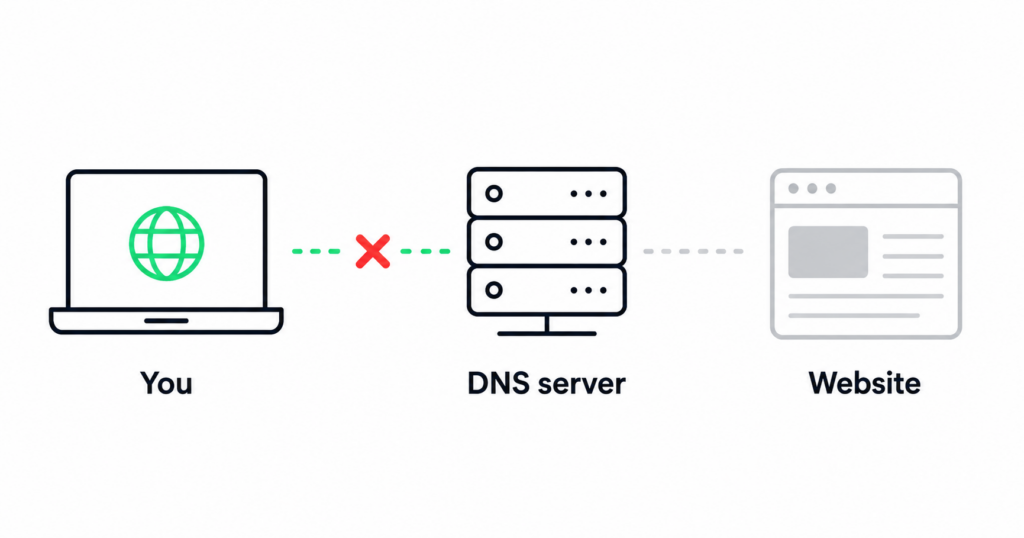
When you see the error “DNS server not responding,” your device is telling you it can’t reach the system that translates domain names (like example.com) into IP addresses.
Without this translation, your browser doesn’t know where to send your request, so websites won’t load. This issue can affect a single site or your entire internet connection, depending on the cause.
How DNS works behind the scenes
DNS, or Domain Name System, is like the internet’s phonebook. When you type a URL into your browser, your device asks a DNS server to find the matching IP address. If the DNS server doesn’t respond, the request times out, and your browser shows an error.
Here’s a simplified flow:
- You enter www.example.com in your browser.
- Your device checks its local DNS cache.
- If no match is found, it queries the configured DNS server (often your ISP’s).
- The DNS server returns the IP address.
- Your browser connects to the site.
If step 3 fails because the DNS server is down, unreachable, or misconfigured, you’ll get the “DNS server not responding” error.
What the error actually means
This error doesn’t always mean the DNS server is down. It could also mean:
- Your device can’t reach the DNS server due to a network issue.
- The DNS server is overloaded and ignoring requests.
- Your firewall or antivirus is blocking DNS traffic.
- You’ve manually set an invalid DNS server in your network settings.
For example, if you switch from automatic DNS to a custom one like 1.1.1.1 (Cloudflare) and mistype it, your device won’t be able to resolve domains. The server isn’t responding because it doesn’t exist at that address.
Temporary vs persistent DNS issues
Some DNS errors are short-lived. A brief network hiccup, a router reboot, or a temporary outage on your ISP’s end can trigger the message. Others are persistent and require manual fixes.
Here’s how to tell the difference, along with some quick fixes:
| Type | Symptoms | Common causes | Quick fix |
| Temporary | Error disappears after refresh or restart | Brief ISP outage, router reboot, Wi-Fi hiccup | Restart router or device; flush DNS cache |
| Persistent | Error appears across multiple devices or browsers | Misconfigured DNS settings, faulty router, ISP DNS failure | Switch to public DNS; update firmware; reset network settings |
Knowing which type you’re dealing with helps narrow down the next steps.
Before diving into solutions, it helps to understand what causes these errors in the first place.
Common causes of the error
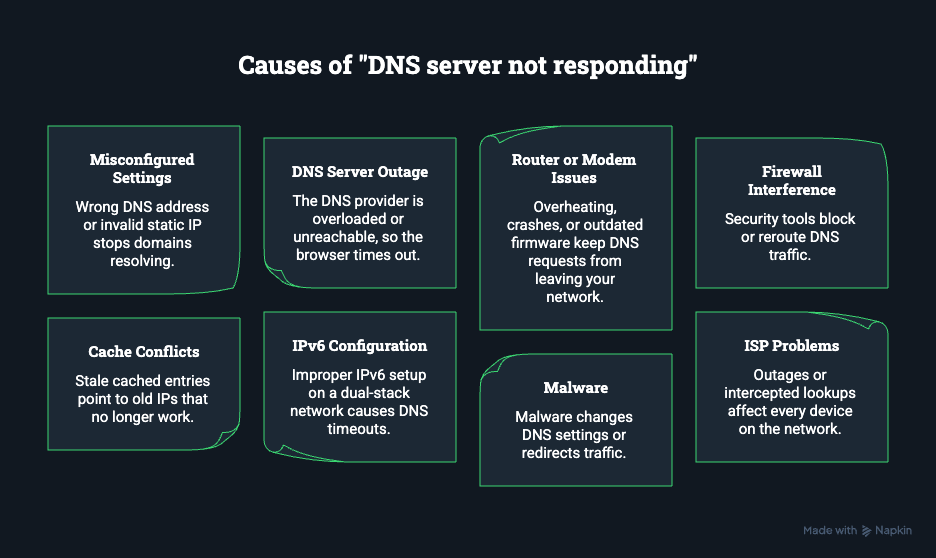
A “DNS server not responding” message can stem from several underlying issues; sometimes on your device, sometimes on your network, and occasionally with your DNS provider itself.
Here are the most common reasons this error appears.
1. Misconfigured network or DNS settings
If your device is using the wrong DNS server address or a static IP that no longer exists, it won’t be able to resolve domains. This often happens after switching networks, installing VPN software, or manually entering DNS addresses.
2. DNS server outages or high latency
Even reliable public DNS providers like Google (8.8.8.8) and Cloudflare (1.1.1.1) can experience slowdowns or outages. When a DNS server is overloaded or temporarily unreachable, your browser times out while waiting for a response.
3. Router or modem issues
Routers act as intermediaries for DNS queries. When they overheat, crash, or use outdated firmware, DNS requests may not leave your local network. Stale DNS cache on the router can also trigger repeated lookup failures.
4. Firewall, VPN, or proxy interference
Firewalls and VPNs sometimes block or reroute DNS traffic. Overly strict security software can mistakenly classify DNS lookups as unsafe, while misconfigured VPNs and proxies may prevent queries from reaching your provider.
5. Browser or operating system cache conflicts
Your browser or OS stores DNS records to speed up browsing, but cached entries can become outdated. If a site’s IP address changes, your device may still try to reach the old one, leading to failed connections.
6. IPv6 configuration problems
Dual-stack networks that support both IPv4 and IPv6 can encounter DNS timeouts if IPv6 is enabled but not configured correctly. The device keeps trying the IPv6 path even when it’s nonfunctional.
7. Malware or modified hosts file
Certain types of malware alter your DNS settings or modify your hosts file to redirect traffic. This can break normal resolution or send your requests to malicious servers instead.
8. ISP-level problems or hijacking
Sometimes the issue isn’t on your end. ISPs can experience DNS outages or intercept failed lookups for ad injection or filtering. If this happens, every device on the network will show the same error.
| Source | Where it occurs | Typical symptom |
| Device settings | Wrong or outdated DNS server, manual IP entry | Error appears only on one device |
| DNS provider | Public or ISP DNS outage, latency spikes | Affects all devices using the same network |
| Router / modem | Firmware bugs, overheated hardware, cache issues | Random timeouts or dropped connections |
| Firewall / VPN / proxy | Overblocking or misrouted DNS requests | Works when security tools are disabled |
| Browser / OS cache | Stale DNS or bad cached entries | Specific websites fail to load repeatedly |
| IPv6 configuration | Dual-stack conflict or misconfigured interface | Inconsistent DNS resolution |
| Malware / hosts file | DNS hijacking or unauthorized changes | Redirects or persistent DNS errors |
| ISP network | DNS interception or routing errors | All devices fail to resolve domains |
Catch DNS failures before your users do
Fixing a DNS error after someone reports it means the damage is already done. For a domain that customers or systems depend on, the goal is to know the moment resolution starts failing, not when the support tickets arrive.
Continuous DNS monitoring checks your records from multiple locations on a set interval and alerts you the moment a lookup fails or returns the wrong value. UptimeRobot watches your A, CNAME, MX, and TXT records, confirms they resolve to what you expect, and notifies your team through Slack, email, or SMS before the problem spreads. Pair it with a public status page so users can see you’re already on it.
Quick fixes for beginners (simple first steps)
You don’t need deep technical knowledge to solve most “DNS server not responding” errors. Many are caused by small, temporary issues that you can fix in a few minutes.
Start with these quick, low-effort checks before moving on to advanced troubleshooting.
1. Restart your router and computer
This simple step fixes a surprising number of DNS problems. Restarting your router resets the network connection and clears temporary issues that may block DNS queries.
- Turn off your router and modem, then unplug them for 30 seconds.
- Restart your computer or device while they’re unplugged.
- Plug the router and modem back in and wait for them to fully reconnect.
Once everything is back online, test a few websites to see if the issue is gone.
2. Try a different browser or device
If the problem only appears in one browser or device, it’s likely not your DNS server.
- Open the same site in another browser (for example, try Firefox instead of Chrome).
- If it loads fine, clear your browser cache or reset its settings.
- If the error appears across multiple browsers or devices, the issue is network-wide.
This quick comparison helps rule out browser-level caching or local misconfigurations.
3. Flush your DNS cache
Your operating system stores DNS entries locally. If those records become outdated or corrupted, your device may fail to connect. Clearing the cache forces a fresh lookup.
Windows:
ipconfig /flushdnsmacOS:
sudo dscacheutil -flushcache; sudo killall -HUP mDNSResponderLinux (systemd):
sudo systemd-resolve --flush-cachesAfter flushing, reopen your browser and try again.
4. Switch to a public DNS server
Your ISP’s DNS servers can occasionally be slow or unreliable. Public DNS providers like Google (8.8.8.8), Cloudflare (1.1.1.1), or Quad9 (9.9.9.9) often respond faster and with fewer errors.
You can change DNS settings on your device or router:
- Windows: Control Panel → Network and Internet → Change adapter settings → right-click connection → Properties → select IPv4 → Use the following DNS addresses.
- macOS: System Settings → Network → select your active connection → DNS tab → add new servers.
After saving, test a few sites.
5. Temporarily disable IPv6
If your network supports IPv6 but your router or ISP doesn’t handle it properly, DNS lookups can hang. Disabling IPv6 is a quick diagnostic step:
- On Windows: Network and Sharing Center → Change adapter settings → right-click connection → Properties → uncheck Internet Protocol Version 6 (TCP/IPv6).
- On macOS: System Settings → Network → select your active interface → Details → uncheck IPv6 (if available).
If disabling IPv6 fixes the issue, you can keep it off or check your router’s IPv6 configuration.
6. Update network drivers or router firmware
Outdated or buggy drivers can cause connectivity issues, including DNS timeouts.
- On Windows, update your network adapter driver through Device Manager.
- On macOS and Linux, OS updates include network driver updates automatically.
- For routers, log in to the admin interface and check for firmware updates.
Once updates are applied, reboot everything and retest your connection.
These beginner steps often resolve the error without diving into advanced settings. If you’re still stuck, the next section covers deeper diagnostics and configuration fixes.
Advanced troubleshooting (for power users & IT pros)
If the quick fixes didn’t solve the problem, it’s time to go deeper.
The steps in this section use command-line tools and diagnostic utilities to uncover exactly where DNS resolution is failing. They’re aimed at users comfortable working with network settings or supporting systems at scale.
1. Use diagnostic tools (nslookup, dig, traceroute, ping)
Start by verifying how your system resolves DNS queries. Tools like nslookup (Windows, macOS, Linux) and dig (macOS, Linux) let you query DNS servers directly and see what responses you get.
Example:
nslookup uptimerobot.comThis shows which DNS server replied and what IP address it returned. If the request times out, specify another server to compare:
nslookup uptimerobot.com 8.8.8.8Use dig for more detailed output:
dig uptimerobot.comFocus on the ANSWER SECTION and Query time. If you get SERVFAIL or NXDOMAIN, the problem lies with your resolver or upstream server.
To test basic connectivity, run:
ping 8.8.8.8If ping fails, the issue is likely network-related, not DNS.
You can also trace the route to a DNS server:
traceroute 8.8.8.8 # macOS/Linuxtracert 8.8.8.8 # WindowsDropped packets or high latency suggest a routing or firewall issue rather than a DNS one.
Tip: For continuous monitoring, you can use website monitoring tools. They’ll keep you up to speed the moment something goes wrong.
2. Check DNS over HTTPS (DoH) settings
Modern browsers like Chrome and Firefox can encrypt DNS traffic using DNS over HTTPS (DoH). If the configured DoH provider is unreachable, your browser might show DNS errors even though system DNS still works.
- Chrome: Settings → Privacy and security → Security → Advanced → Use secure DNS
- Firefox: Settings → General → Network Settings → Enable DNS over HTTPS
Try disabling secure DNS temporarily. If pages start loading, the DoH resolver was likely the issue.
3. Inspect and reset the hosts file
Your hosts file overrides DNS lookups locally. Corrupted or modified entries can redirect or block domains.
| OS | Default path |
| Windows | C:\Windows\System32\drivers\etc\hosts |
| macOS / Linux | /etc/hosts |
Open the file with admin privileges and review it for strange or duplicate entries. Remove unauthorized lines or restore it to the default minimal version (just 127.0.0.1 localhost).
4. Router-level troubleshooting
If every device on your network shows the same error, the router may be at fault.
- Log into your router’s admin panel (usually at 192.168.0.1 or 192.168.1.1).
- Check WAN or Internet DNS settings and confirm they point to valid servers (e.g., 8.8.8.8 or 1.1.1.1).
- Reboot the router or clear its DNS cache if the option exists.
- Update to the latest firmware. Outdated builds can cause intermittent DNS failures.
For managed environments, verify that the router’s DHCP service isn’t distributing incorrect DNS information to connected devices.
5. Internal or enterprise DNS issues
In corporate or hybrid environments, DNS problems may originate from internal resolvers.
- Confirm that internal DNS servers are reachable (use
pingornslookupagainst them). - Review split-horizon DNS configurations to ensure internal domains aren’t conflicting with public ones.
- Check DHCP options 6 and 15. Incorrect domain suffixes or DNS server IPs can cause failed lookups.
- On Linux servers, inspect
/etc/resolv.confand logs viajournalctl -u systemd-resolved. - On Windows Server, check the DNS Manager event logs for recursion or zone errors.
These diagnostic steps help narrow down whether the issue is local, network-wide, or upstream. Once you’ve isolated the source, you can apply targeted fixes without guesswork.
| Tool | What it checks | When to use it |
| nslookup | Queries DNS servers directly and shows response IPs | Confirm whether your system can resolve domains |
| dig | Provides detailed DNS record data and query times | Inspect DNS resolution depth and upstream behavior |
| ping | Tests network reachability to an IP or domain | Verify if connection issues are network-related, not DNS |
| traceroute / tracert | Traces the network path to a target server | Identify latency, packet loss, or routing problems |
| Wireshark / tcpdump | Captures and analyzes network packets | Diagnose advanced or intermittent DNS communication issues |
| journalctl / Event Viewer | Logs DNS-related system events | Review DNS errors or service failures on your OS |
Fixing DNS issues on different devices
DNS errors can look different depending on the device you’re using, but the root cause is usually the same: your device can’t reach the DNS server that translates domain names into IP addresses.
Here’s how to troubleshoot DNS problems on major platforms.
Windows
On Windows, errors often appear as “DNS server isn’t responding” or “This site can’t be reached.”
Try the following:
Flush the DNS cache:
ipconfig /flushdnsRestart the DNS client service:
net stop dnscachenet start dnscacheSwitch to a public DNS:
- Control Panel → Network and Internet → Network and Sharing Center
- Change adapter settings → right-click connection → Properties
- Select Internet Protocol Version 4 (TCP/IPv4) → Properties
- Choose “Use the following DNS server addresses” and enter 8.8.8.8 and 8.8.4.4 (Google) or 1.1.1.1 (Cloudflare).
If that doesn’t help, check your firewall settings to ensure DNS queries over port 53 aren’t blocked.
macOS
Clear the DNS cache:
sudo dscacheutil -flushcache; sudo killall -HUP mDNSResponderChange DNS servers:
- System Settings → Network → select active connection → Details
- Under DNS, add new servers like 1.1.1.1 and 8.8.8.8, then click OK → Apply.
Reset network interface (if needed):
Turn Wi-Fi off and on, or delete and re-add the network under Known Networks.
Linux (systemd-resolved)
Flush DNS cache:
sudo systemd-resolve --flush-cachesCheck current DNS servers:
systemd-resolve --statusEdit resolv.conf or configure NetworkManager:
/etc/resolv.confmay be symbolic-linked tosystemd-resolved.- Add public DNS servers if your ISP’s resolvers are slow or failing.
Check logs with journalctl -u systemd-resolved to see if your resolver is failing or timing out.
iOS
- Go to Settings → Wi-Fi.
- Tap the i next to your connected network.
- Scroll to Configure DNS → switch to Manual.
- Add servers such as 1.1.1.1 and 8.8.8.8.
For cellular data, you’ll need a VPN or DNS app (like Cloudflare’s 1.1.1.1 app) to override default DNS settings.
Android
Steps vary slightly by device and version:
- Open Settings → Network & Internet → Internet.
- Long-press your Wi-Fi network → Modify network.
- Under IP settings, switch from DHCP to Static.
- Enter DNS1 = 1.1.1.1, DNS2 = 8.8.8.8.
For mobile data, use a VPN or custom DNS app to override carrier DNS.
Routers and access points
If DNS issues affect every device on your network, start here:
- Log into your router’s admin panel (usually 192.168.0.1 or 192.168.1.1).
- Locate DNS settings under WAN or Internet.
- Replace ISP-assigned DNS with public ones (Cloudflare, Google, or Quad9).
- Save and reboot the router.
Some routers cache DNS lookups; if you’re still seeing errors, clear the cache (if supported) or restart the device.
Smart TVs, consoles, and streaming devices
These devices often have limited network settings but allow manual DNS configuration.
- Open Network Settings → Manual setup.
- Enter public DNS addresses.
- Restart the device and test a connection.
These platform-specific fixes cover the most common ways DNS errors appear across hardware and operating systems.
If problems persist even after these steps, the issue likely lies with your router or DNS provider, not the device itself.
| Device / OS | Where to change DNS | How to clear cache |
| Windows | Control Panel → Network and Sharing Center → IPv4 Properties | ipconfig /flushdns |
| macOS | System Settings → Network → DNS tab | sudo dscacheutil -flushcache; sudo killall -HUP mDNSResponder |
| Linux (systemd) | /etc/resolv.conf or NetworkManager | sudo systemd-resolve –flush-caches |
| iOS | Settings → Wi-Fi → Configure DNS (Manual) | Toggle Airplane mode or restart device |
| Android | Settings → Network & Internet → Modify network → Static IP | Toggle Airplane mode or restart device |
| Router | Admin panel (usually 192.168.0.1 / 1.1) → DNS settings | Reboot router or clear cache (if supported) |
| Smart TV / Console | Network settings → Manual setup | Restart device |
Choosing the best DNS server for speed & privacy
Not all DNS servers perform the same. Some are faster, some protect your privacy better, and some block malicious sites. Choosing the right one can make pages load quicker and keep your data secure.
Speed and reliability
The closer and better-maintained a DNS server is, the faster it responds.
Public DNS services like Google (8.8.8.8), Cloudflare (1.1.1.1), and Quad9 (9.9.9.9) run global networks with distributed data centers to reduce latency. Many use anycast routing, which automatically sends your query to the nearest node.
You can test resolution speed from your location using tools such as Namebench, DNSPerf, or GRC’s DNS Benchmark.
Privacy and data handling
DNS queries reveal which websites you visit. Some providers log this information, while others avoid it entirely.
| Provider | Focus | Logs kept | Extras |
| Cloudflare (1.1.1.1) | Privacy-first | No identifying logs; independent audits | DNS-over-HTTPS & DNS-over-TLS |
| Quad9 (9.9.9.9) | Security & privacy | No data monetization | Blocks known malicious domains |
| Google DNS (8.8.8.8) | Performance | Temporary logs (24-48 hrs) | High reliability & analytics tools |
Always review a provider’s privacy policy, especially if you’re configuring DNS for work or shared devices.
Testing and switching DNS servers
Before switching completely, test one device first to measure speed and reliability.
Example:
dig example.com @1.1.1.1This queries Cloudflare directly and shows response time. Try the same command with other providers to compare.
Once you’ve chosen, update DNS settings on your system or router:
- Windows: Network & Internet Settings → Change Adapter Options → IPv4 → Use the following DNS server addresses
- macOS: System Settings → Network → DNS tab → Add servers
- Routers: Admin panel → WAN or DHCP options → Update DNS settings
Keep a note of your old settings in case you need to revert.
Choosing a DNS provider is rarely one-size-fits-all. Benchmark a few options, check their privacy policies, and pick the one that balances speed, uptime, and data protection for your needs.
Preventing DNS issues in the future
Once your DNS is working again, a few proactive steps can help you avoid future outages or slowdowns.
1. Use reliable and redundant DNS providers
Even the best DNS services experience downtime occasionally. Configure two or more providers (for example, Cloudflare + Google or Quad9) so your system has a fallback if one fails. If you manage your own DNS, distribute your authoritative nameservers across multiple regions and networks to prevent single points of failure.
2. Monitor DNS health
DNS problems often go unnoticed until users start complaining. Continuous monitoring alerts you to failures before they escalate.
Tools like UptimeRobot DNS Monitoring check whether your domain resolves correctly and send instant alerts for timeouts or missing records.
Tip: Monitor both public and internal DNS endpoints to catch regional or configuration-specific issues early.
3. Keep DNS configurations up to date
Expired domains, outdated records, or stale caches can all cause errors.
Regularly review and clean up your DNS records to remove unused entries and confirm that all A, AAAA, CNAME, and MX records point to the right destinations.
Set reminders to:
- Check domain and SSL certificate expiration dates
- Audit DNSSEC settings
- Update TTL values based on how often your records change
4. Strengthen security and reliability
- Enable DNSSEC to protect against tampering
- Use DNS-over-HTTPS (DoH) or DNS-over-TLS (DoT) for encrypted lookups
- Run malware scans occasionally to prevent host file modifications
- Keep routers and firmware updated to reduce DNS hijacking risks
Taking a few preventive steps now can save hours of troubleshooting later. Combine redundancy, monitoring, and security best practices to keep your DNS, and your sites, stable and responsive.
Conclusion
DNS errors can be frustrating, but most are easy to diagnose once you know where to look. Restarting your router, flushing DNS cache, or switching to a public resolver fixes the majority of cases. For persistent or large-scale issues, tools like dig, nslookup, and active DNS monitoring help uncover deeper problems.
If you manage multiple sites or rely on uptime for business, automated DNS monitoring is the best safety net.
UptimeRobot’s DNS Monitoring continuously checks whether your domains resolve correctly and alerts you instantly when DNS records fail, change, or propagate incorrectly, so you can act before customers notice.
Keep your DNS healthy, responsive, and reliable. Monitor it automatically with UptimeRobot.
FAQ's
-
Slow DNS means the server eventually answers, just not quickly enough, causing delays when loading pages. “No response” means your device never receives an answer, so the request times out entirely.
-
They’re reliable and fast for most users, but not always the best choice everywhere. Test a few options like Cloudflare, Google, and Quad9 to see which performs fastest in your region.
-
Sometimes. A VPN may route your DNS queries through its own servers, bypassing a broken ISP DNS. But a misconfigured VPN can also cause DNS failures. Test both with and without it.
-
If you have no internet, nothing loads at all. If your DNS isn’t responding, you still have internet access, but your device can’t translate domain names into IP addresses, so websites don’t open.
-
Rarely, yes. Some antivirus or firewall tools block or intercept DNS traffic for security scans. Try disabling them temporarily to check if they’re the cause.
-
The router might be assigning bad DNS settings, or the Wi-Fi network itself is unstable. Try connecting over Ethernet or switching to a public DNS server manually.
-
Some VPNs replace your DNS resolver but fail to handle the queries correctly. Check the VPN’s DNS settings or disable it temporarily to confirm.
-
Yes. You’re simply choosing a different provider to resolve domain names. Stick to trusted public options like Google, Cloudflare, or Quad9 to avoid privacy or reliability issues.
-
It depends on where you are. Use free tools like DNSPerf, Namebench, or GRC’s DNS Benchmark to measure latency from your network and pick the quickest.
-
Try loading sites with a public DNS (like 1.1.1.1 or 8.8.8.8). If they work there but not with your default settings, your ISP’s DNS is likely having issues.
-
Flushing deletes outdated or corrupted DNS entries stored on your device, forcing it to request fresh records from the server.
-
Most networks still rely primarily on IPv4, but enabling IPv6 DNS can improve compatibility if your ISP supports it. If in doubt, use both.
-
Mobile data uses your carrier’s DNS, while Wi-Fi uses your router’s. If it fails only on Wi-Fi, the problem is likely your router or ISP DNS.
-
Yes. Outdated firmware, overheated hardware, or incorrect DHCP settings can all prevent your router from forwarding DNS requests properly. Reboot or update it to test.