TL;DR (QUICK ANSWER)
A good outage notification tells users what’s affected, what you know so far and when they can expect another update. The message should change as the incident moves from initial detection through investigation, identification, monitoring and resolution. Use the templates below as a starting point for status pages, Slack, email and social posts.
When a service goes down, an outage notification tells affected users what’s happening, what they can expect next and when they’ll hear from you again.
You don’t need to know the cause before you say something. In fact, your first message may simply acknowledge the problem while your team investigates. As you learn more, your updates should move with the incident, from initial detection through to resolution.
Below, you’ll find copy-paste templates for every stage, plus versions for Slack, email and social media and a complete outage example from start to finish.
Key takeaways
- Send the first notification as soon as you’ve confirmed there’s a problem. You don’t need to wait until you know the cause.
- Tell users what’s affected and what that means for them in plain language.
- Give a time for the next update, even if you don’t expect to have a resolution by then.
- Add details as they’re confirmed instead of speculating early in the incident.
- Keep updates consistent across your status page, email, Slack and social channels.
- Don’t mark an incident as resolved until you’ve confirmed the service is stable.
What to include in an outage notification
A good outage message answers the questions your reader is already asking. Keep it short enough to scan, but specific enough that customers, internal teams, and support agents can act without asking for basic details.
safeREACH’s guidance on IT outage notifications recommends answering what’s down, who’s affected, and the impact, plus the current status and who’s handling it. The joint CISA/FBI guidance on outage communications makes a similar case.
Use one source of truth, give actionable instructions, and timestamp every update, even when the facts are still incomplete.
Use this checklist before you publish any outage update:
- What service or feature is affected
- Who is affected, including specific regions or customer groups if known
- What users are experiencing, such as “users can’t submit payments”
- When the issue started and the current status
- Any available workaround
- Where users can go for support
- When you’ll share the next update
The 5 stages of an incident
Most unplanned outage communication follows a steady lifecycle. The wording changes as facts improve, but every update should stay short and point readers back to the same status page or internal incident record.
These stages work well for a service outage notification template because they match what responders usually know at each moment. They also stop teams from overexplaining too early or declaring recovery too soon.
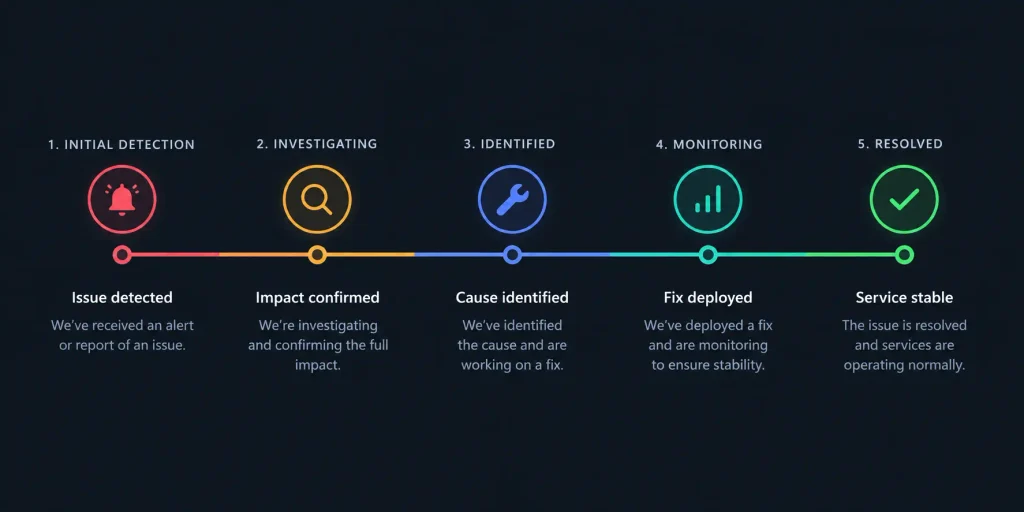
- Initial detection: You’ve seen something’s wrong and are acknowledging it.
- Investigating: You’ve confirmed the problem and are digging in.
- Identified: You know the cause and are working on the fix.
- Monitoring: The fix is deployed and you’re watching to confirm recovery.
- Resolved: Service is back to normal.
The stage names don’t need to be fancy. What matters is that every audience can tell whether the issue is new, active, recovering, or closed.
System outage notification templates by stage
The templates below cover each stage of an outage, from the first sign of trouble to resolution.
Replace the details in [brackets] with your own, and keep the wording consistent across your status page and other channels.
Stage 1: Initial detection
At this point, acknowledge the signal without guessing at the cause. Your first message should stop customers from wondering whether you know about the issue.
[Initial detection] We’re aware of reports of [issue] with [service] affecting [scope]. We’re looking into it now. Next update by [time] [time zone] at [status URL].
This update is intentionally short. If you haven’t confirmed the scope, don’t pretend you have.
Stage 2: Investigating
Use this once you’ve confirmed the problem and can describe the customer impact. It’s still fine to say you don’t know the cause yet.
[Investigating] We’ve confirmed an issue with [service] beginning at [time] [time zone]. Users may be unable to [user action] in [scope]. We have not confirmed the cause yet. Next update by [time] at [status URL].
This is often the most useful early update because it names the impact. Support teams can reuse it in macros and ticket replies.
Stage 3: Identified
Use plain language for the cause, then state what your team is doing. If you don’t have a reliable ETA, leave it out and give the next update time instead.
[Identified] We’ve identified [plain-language cause] affecting [service]. [Impact] continues for [scope]. We’re [fix action]. We expect recovery around [time], and we’ll update sooner if that changes.
Never promise an ETA because someone asked for one. Give an estimate only when the incident lead has enough confidence to stand behind it.
Stage 4: Monitoring
Monitoring means the fix is out, but you’re still checking telemetry and user transactions. This stage helps prevent a premature “resolved” message.
[Monitoring] We’ve deployed a fix for [service]. [Function] should be recovering for [scope]. We’re monitoring error rates and user transactions before marking this resolved. Next update by [time] at [status URL].
If customers need to retry failed actions, say that here. If no action is needed, say that too.
Stage 5: Resolved
Mark the incident resolved only after service is stable. Include the resolution time, a short apology, and a post-incident review note if you plan to publish one.
[Resolved] As of [time] [time zone], [service] is operating normally for [scope]. The incident lasted [duration], from [start] to [end]. We’re sorry for the disruption. We’ll publish a post-incident review by [date/timeframe] at [status URL].
A one-line apology is enough. Customers want ownership, but they also want the final status and any follow-up action.
Channel variations
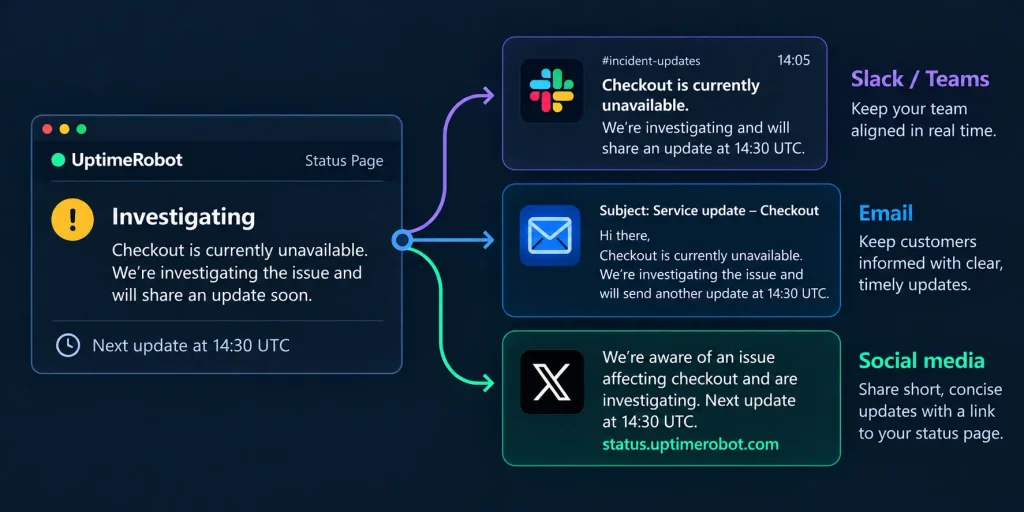
Channel changes should adjust length, not facts. Keep the same impact and incident state everywhere. Use the same workaround and next-update time too.
A status page is usually the record you link from chat, social, and email. UptimeRobot’s status page lets visitors subscribe to updates by email, so they can follow an incident without opening a support ticket in the first place.
Slack / Teams
Chat works best for internal updates, support enablement, and fast stakeholder alerts. Post the first update in a dedicated incident channel, then add later updates in the same thread to avoid scattered context.
Keep the stakeholder channel focused on status updates, and run troubleshooting in a separate incident bridge or thread.
Investigating example:
[Investigating] [Service] is returning intermittent errors for [scope] as of [time] [time zone]. Engineering is investigating. No workaround is available yet. Next update by [time]. Status: [status URL]
Resolved example:
[Resolved] [Service] recovered at [time] [time zone]. Users should now be able to [action]. If you still see errors, contact [support route] with incident [ID].
Use status markers (🔴/🟡/🟢) only if your team already understands them. During an active incident, clarity beats decoration.
Social / X
Social updates are for public acknowledgement and redirection. Keep them factual, brief, and linked to the status page.
Don’t joke mid-incident or debate users in replies. If the issue affects only logged-in customers, say that without exposing private account or infrastructure details.
Investigating example:
We’re investigating an issue affecting [service] for [scope]. Users may see [impact]. Updates will be posted here: [status URL]
Resolved example:
Resolved: [service] has recovered as of [time] [time zone]. Details and any follow-up updates are available here: [status URL]
For longer incidents, repeat the status page link in every post. People often see updates out of order.
The stage templates above can double as the body of a system outage email template. Email is better for formal notices and follow-up, but it shouldn’t be your only channel if email delivery may be affected.
A customer-facing service outage email template should mirror the status page and add only the account-specific details recipients need. For internal incidents, keep the same order but swap in the service desk path, affected location, and incident ID.
Keep a separate planned outage notification email template for maintenance windows. For live incidents, use a direct subject line that shows the stage before the reader opens the message.
Subject-line formulas you can reuse:
- [Initial detection] Reports of issues with [service]
- [Investigating] Issues with [service]
- [Identified] Cause found for [service] disruption
- [Monitoring] [service] recovering after fix
- [Resolved] [service] restored
Skip long greetings and sign-offs for active incidents. The fastest useful email is a subject line with the incident state and a body that links to the status page.
A full incident, start to finish
So what do these five stages look like during a real outage? Here’s one fictional example, following a Payments API incident from the first reports of 503 errors through to resolution.
Watch how the information changes with each update. The first message only acknowledges the problem. Once the impact is confirmed, the next update gets more specific. The cause isn’t mentioned until it’s known, and the incident isn’t marked as resolved until the service has recovered.
| Time | Stage | Copy |
| 14:02 | Initial detection | [Initial detection] We’re aware of reports that the Payments API is returning 503 errors for some production requests. We’re looking into it now. Next update by 14:15 UTC at status.example.com. |
| 14:10 | Investigating | [Investigating] We’ve confirmed elevated 503 errors on the Payments API beginning at 13:58 UTC. Customers may be unable to create charges through /v1/charges. We have not confirmed the cause yet. Next update by 14:25 UTC. |
| 14:28 | Identified | [Identified] We’ve identified a database failover that left the Payments API with too few healthy database connections. Charge creation is still failing for some customers. We’re restarting affected API workers and increasing connection capacity. Next update by 14:45 UTC. |
| 14:47 | Monitoring | [Monitoring] We’ve deployed the fix for the Payments API. Charge creation should be recovering, and 503 error rates have dropped to normal levels. We’re monitoring successful charge creation before marking this resolved. Next update by 15:15 UTC. |
| 15:10 | Resolved | [Resolved] As of 15:10 UTC, the Payments API is operating normally. The incident lasted 72 minutes, from 13:58 to 15:10 UTC. We’re sorry for the disruption. We’ll publish a post-incident review by tomorrow at status.example.com. |
Best practices
Even with a template ready, good outage communication depends on what you say, when you say it and how consistently you keep people updated.
- Send the first update early. You don’t need to know the cause yet. Share what you’ve confirmed and say that you’re investigating.
- Stick to what you know. Don’t speculate about the cause or give a recovery time you can’t confidently meet.
- Give a time for the next update. If there’s nothing new to report by then, say so and give a new update time.
- Keep information consistent across channels. Your status page, email, Slack and social updates should all reflect the same current information.
- Be careful with sensitive details. Security incidents may require you to leave out information that could interfere with investigation or recovery.
- Review your process before an outage happens. Decide who publishes updates, where they’ll appear and how information will move from the incident response team to whoever is communicating with users.
Manage incidents and keep users updated with UptimeRobot
Detecting an outage is only the beginning. UptimeRobot gives you one place to track incidents, collaborate with your team and share updates directly to your status page as the situation changes.
-
Start with what’s affected, what users are experiencing and what you’re doing about it. Keep the message short, stick to confirmed information and tell users when they can expect the next update.
-
Include the affected service, the impact on users, the current status and the time of your next update. Add a workaround if one is available, and be clear when the cause is still unknown.
-
An incident is any event that disrupts or affects a service. An outage is a type of incident where the service, or part of it, becomes unavailable.
-
There’s no single update schedule that works for every incident. Atlassian recommends updating users about every 30 minutes as a general guideline, but the right frequency depends on the severity of the incident and how quickly the situation is changing.
-
A status page shows users whether your services are working normally and provides updates during incidents and maintenance. It gives people one place to follow an outage as it moves from investigation through to resolution.