Monitoring accounts are easy to overlook when a website changes hands. An agency might transfer the site, DNS credentials, and documentation the new team needs, while the UptimeRobot account remains tied to a former employee’s email address.
That becomes a problem the next time something goes down. Alerts could still be going to the outgoing team, or the client may discover they don’t have full control of the monitoring account.
A proper monitoring handoff covers more than the monitors themselves.
Here’s what to transfer, what to check before anyone loses access, and what commonly gets missed.
Trap one: admin access is not ownership
This is the big one, and it catches people who thought they’d done everything right.
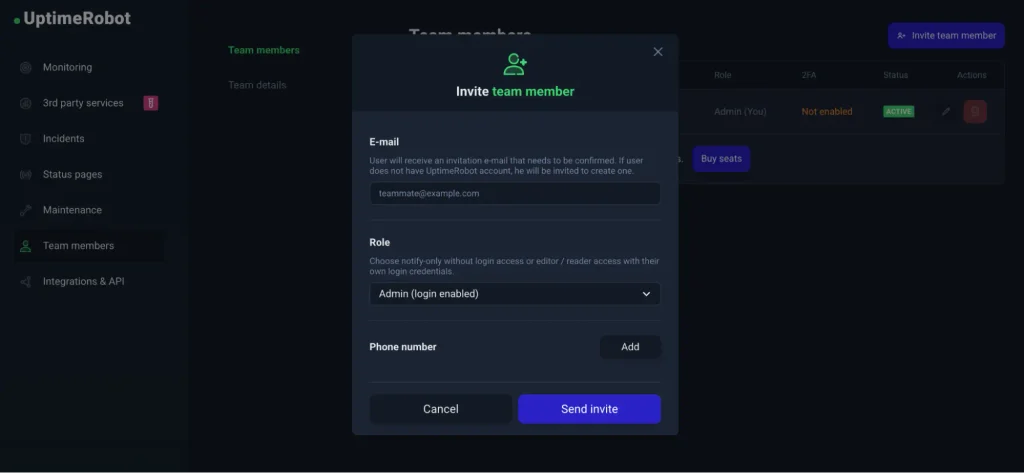
You can be an Admin sub-user on an UptimeRobot account and still not control the account as its owner. Admins have broad operational access. They can manage monitors and team settings and manage alert contacts attached to monitors, but they cannot manage integrations.
Admin sub-users do not have access to billing sections or invoices; those remain available to the account owner.
So if an agency “gave you admin access,” check what you can actually reach. If you can’t access billing or invoices, you are operating the account without owning it. The account owner is also the person who needs to initiate a formal ownership transfer with UptimeRobot Support when ownership is changing.
The roles, briefly:
| Role | Can do | Cannot do |
|---|---|---|
| Account owner | Own and control the account, including billing and invoices | — |
| Admin | Manage monitors, team settings, alert contacts, and other supported account functions | Billing, invoices |
| Write | View and edit monitors | Account settings and account-level tasks |
| Read | View monitors, logs, and settings | Make changes |
| Notify-only | Receive email and SMS/voice alerts | Dashboard or account access |
Notify-only seats are useful when someone needs alerts but doesn’t need access to the dashboard or account settings. They receive email and SMS/voice alerts but do not log in to the account.
Trap two: changing the email is not the same as transferring ownership
Changing the account email changes the login address. It does not transfer account ownership.
When you change the account email from the dashboard, UptimeRobot sends a verification email to the original email address. Once the change is verified, the new address becomes the username used to log in.
That is important during a handoff, but it is not the same thing as transferring ownership. UptimeRobot’s current documented ownership-transfer process requires the current account owner to contact Support from the current owner’s email address, provide the current and new owner’s email addresses, and have Support perform the transfer on the back end.
The practical sequence is therefore:
- Have the new owner added as an Admin sub-user so they can manage the account while the handoff is being completed.
- Have the current owner contact UptimeRobot Support from the current owner’s email address to request the ownership transfer.
- Include the email addresses of both the current owner and the new owner in the request.
- After Support confirms the transfer, verify that the new owner can access the account and its billing area.
If the current owner is no longer available, do not treat an email change as a substitute for ownership transfer. Contact UptimeRobot Support and follow the steps they provide.
Trap three: 2FA on a departing person’s account
If the account has two-factor authentication enabled and the only authenticator is on a departing person’s device, the handoff can become a security and access problem.
Complete the ownership handoff while the current owner still has access, and make sure the organization can maintain access to the authenticator used for the account. UptimeRobot allows 2FA to be disabled and re-enabled, but disabling a security control should be a recovery measure, not the normal offboarding plan.
If the current owner is already gone and 2FA is blocking access, contact UptimeRobot Support rather than trying to work around it.
What actually needs to move
Work through these in order.
Account ownership and login
Make sure the organization controls the account and the email address used for ongoing access. A role-based address can eliminate the dependence on just one employee, but remember that changing the email itself is not the ownership-transfer process.
For a formal ownership change, contact UptimeRobot Support while the current owner still has access to the account.
Billing
Confirm who controls the subscription and payment method.
If the agency is paying, update the payment method and billing details as part of the handoff so the client is not dependent on the agency to keep the subscription active.
Then, download the invoices the finance team needs while the current owner can access them.
Alert contacts
Go through every alert destination. Remove contacts that belong to the outgoing party and add the contacts the new team relies on.
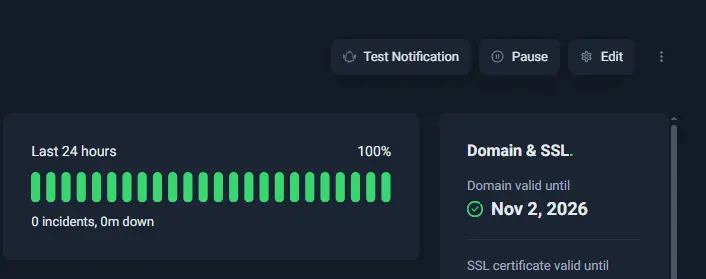
Then, use UptimeRobot’s Test Notification function on the right side of your dashboard to verify the channels you intend to keep.
A submitted test is not proof that a message was delivered, so confirm that the test actually arrives at each destination.
Team members
Remove people who should no longer have access and add the people who need it. Admin and Write sub-users can manage monitors, and Admin sub-users can manage the team and its members.
A sub-user has their own UptimeRobot login/account outside the team account, so removing them from this team does not delete that separate account.
API keys and integrations
Inventory any API keys, automation, CI jobs, scripts, dashboards, or integrations controlled by the outgoing agency.
Replace credentials that should no longer be controlled by the old organization, but first identify what depends on each credential so you do not break an integration during the handoff. Use a read-only API key where read-only access is sufficient.
Status pages
Status pages are configured within the UptimeRobot account.
If a status page uses a custom domain, the DNS record is outside UptimeRobot and must remain under an account or DNS zone the client controls.
UptimeRobot’s current custom-domain setup uses a CNAME pointing the chosen subdomain to stats.uptimerobot.com.
Integrations
Review Slack, Microsoft Teams, Discord, PagerDuty, webhooks, and any other alert destinations.
A destination owned by the outgoing agency can remain configured even after the handoff, so verify that each integration points to a workspace, webhook, or endpoint the new organization controls.
Only the account owner can add, modify, or delete integrations, so any necessary changes may need to wait until the ownership transfer is complete.
Monitor inventory and history
Capture the monitor inventory before changing anything: monitor names, URLs, monitor types, key settings, alert assignments, and any other information the organization needs to reproduce the setup.
Preserve historical uptime and incident records that matter for contracts, SLAs, or internal reporting. UptimeRobot’s retained history is plan-dependent, so don’t assume the data will remain available indefinitely.
If you’re already locked out
If the account owner has already left or you no longer have access to their email address, contact UptimeRobot Support for next steps.
If the current owner is still reachable, ask them to contact Support from the email address associated with the account and request the ownership transfer. They can also add the incoming owner as an Admin while the transfer is being completed.
How to set it up so this never happens
If you’re starting fresh or you’ve just completed a handoff, a few simple steps can prevent the same problem happening again.
Make the account organization-controlled
Use an owner identity and login address that the organization can maintain rather than tying the account exclusively to one individual’s mailbox or device.
Keep backup administrative access where your plan supports login seats
A single person with the only practical access is a single point of failure. Add another trusted administrator before the primary owner leaves.
Put monitoring on the offboarding checklist
Include ownership transfer, team access, alert contacts, API credentials, and integrations alongside the other systems you already deprovision.
If you’re the agency, define the ownership model in the engagement
Decide at kickoff who owns the monitoring account and who administers it. A client-owned account with the agency added as an Admin is often the cleanest arrangement when the client should retain the monitoring history and account relationship after the engagement ends.
The handoff checklist
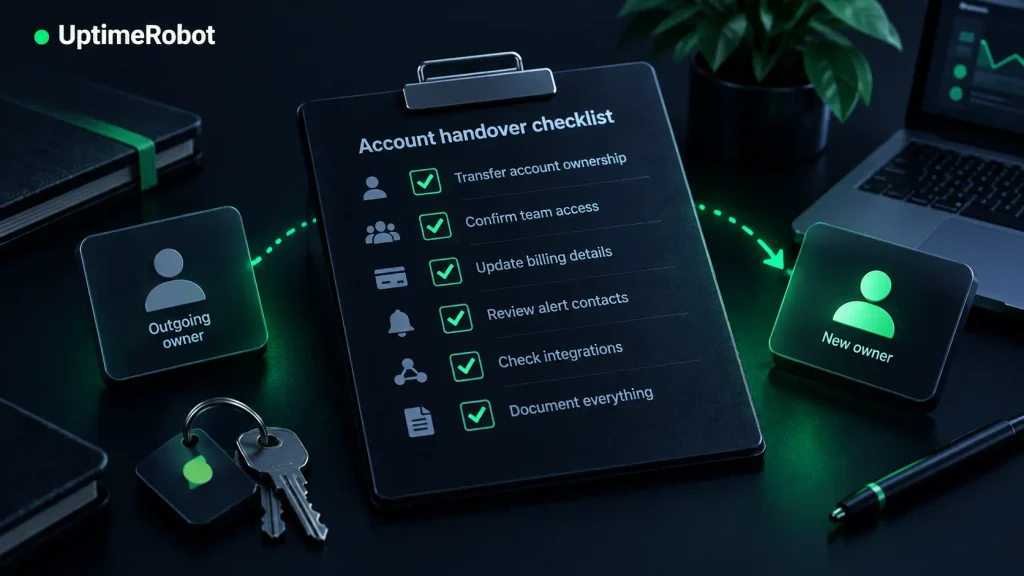
Use this checklist before the current owner or outgoing team loses access. Work through the account first, then check the monitoring setup and anything connected to it.
- Add the incoming owner as an Admin sub-user so they have access during the handoff.
- Have the current owner contact UptimeRobot Support from their account email address and provide the email addresses of both the current and new owner.
- Once the transfer is complete, confirm the new owner can access billing and invoices.
- Check that the subscription, payment method, and billing details are controlled by the organization that now owns the account, and download any invoices the finance team needs.
- Make sure 2FA is not tied only to a departing person’s device.
- Remove outgoing sub-users, add anyone who needs ongoing access, and keep backup Admin access where the plan supports login seats.
- Review every alert contact, remove those belonging to the outgoing party, and send Test Notifications to confirm the remaining channels work.
- Inventory API keys, dashboards, scripts, CI jobs, and other services that use UptimeRobot credentials. Replace credentials the outgoing party should no longer control.
- Review integrations and confirm they point to workspaces, webhooks, or endpoints controlled by the new organization.
- Check that DNS records for custom-domain status pages are in a DNS zone the organization controls.
- Capture the monitor inventory and preserve any uptime or incident history needed for SLAs, reporting, or audits.
- Add monitoring ownership and access to your standard offboarding process for future handoffs.
Once those checks are complete, the new owner should control the account, its alerts, and the services connected to it, without depending on the outgoing team.
-
Yes, but the current documented process is not self-service. The current account owner should contact UptimeRobot Support from the current owner’s email address and provide the email addresses of the current and new owners. Support performs the ownership transfer on the back end. Changing the account email is different: it changes the login address and requires verification at the original email address.
-
For day-to-day monitoring administration, an Admin sub-user has broad access. It is not the same as owning the account, because Admin sub-users do not have access to billing or invoices and cannot perform the formal ownership transfer themselves.
-
If the current owner is still available, have them start the ownership-transfer request with UptimeRobot Support and add the incoming owner as an Admin while the transfer is being completed. If the current owner is unavailable, contact Support and follow the provided steps.
-
There is no single rule for every engagement, but when the client needs to retain the monitoring history, billing relationship, and account after the agency leaves, the client should own the account and give the agency Admin access.
-
The monitoring data remains associated with the account; it does not automatically move to a different account just because an agency changes. The important question is therefore who controls the account and how long the relevant history is retained under the current plan.
-
UptimeRobot’s current Terms require each person to have only a single account, and UptimeRobot’s client-work guidance recommends using one account with team access, tags, and status pages rather than creating multiple accounts as a way around account limits. Organize client monitoring within the account using the sharing and organization features available to you.