TL;DR (QUICK ANSWER)
Web hosting uptime is how much of the time your host keeps its servers up, and the guarantee is usually 99.9% (about 44 minutes of downtime a month) or 99.99% (about 4 minutes).
The guarantee covers only the host’s side, minus exclusions like scheduled maintenance, and a missed month usually earns a small credit you have to claim yourself. To see your real uptime and back up a claim, monitor your site from outside your host.
Web hosting uptime is the share of time your host keeps your site’s server up and reachable, usually measured per month. A 99.99% guarantee allows about 4 minutes of downtime a month, while a 99.9% guarantee allows about 44.
The two numbers look almost the same on a pricing page, and neither says what happens when your host misses one.
You’ll learn what a hosting guarantee includes, how to check your host yourself, and what to do when the numbers don’t match.
Key takeaways
- Web hosting uptime tracks your host’s servers and network, which can be up while your site is broken
- At 99.99%, a host can be down for under an hour a year, against almost 9 hours at 99.9%
- Scheduled maintenance, DDoS attacks, and problems in your own code usually don’t count against the guarantee
- Depending on your host’s terms, a missed guarantee might let you claim a credit
- Hosting types differ in redundancy and in who fixes what, more than in their guarantees
- Monitoring from outside your host shows what visitors see and gives you your own record of every outage
What is web hosting uptime?
Web hosting uptime is the percentage of time your hosting provider keeps your server available, as measured by the host.
Hosts report it per month, and their uptime guarantee is a promise about that number. That isn’t the same as your website being up.
The server can be running while your site shows a database error or a blank page after a bad plugin update.
So two numbers are worth knowing:
- Server uptime: Whether the machine and network your site runs on are reachable. Hosting guarantees are written around this one.
- Website uptime: Whether your pages load and show the right content. This is what visitors and customers see, and what an uptime test checks.
What uptime percentages mean in real downtime
Each uptime percentage sets how much downtime a host can have before it misses the guarantee. At 99.5%, that’s almost two full days a year (44 hours).
This table uses an average month of 43,830 minutes (365.25 days divided by 12), the same as our SLA calculator. Figures are rounded down to the second.
| Uptime | Downtime per month | Downtime per year |
| 99.5% | 3 h 39 min 9 s | 43 h 49 min 48 s |
| 99.9% | 43 min 49 s | 8 h 45 min 57 s |
| 99.95% | 21 min 54 s | 4 h 22 min 58 s |
| 99.99% | 4 min 22 s | 52 min 35 s |
| 99.999% | 26 s | 5 min 15 s |
To calculate uptime for one month yourself, divide the minutes your site was up by the total minutes in that month. Let’s say your site was down for 80 minutes in a 30-day month, which has 43,200 minutes.
Your uptime was (43,200 – 80) ÷ 43,200 × 100 = 99.81%.
What causes hosting downtime?
Hosting downtime starts in one of three places. It can be the host’s own infrastructure, your site, or the services in between, such as your DNS provider or CDN.
Your host’s uptime guarantee covers only the first of these, and even then it leaves some of the host’s own problems out.
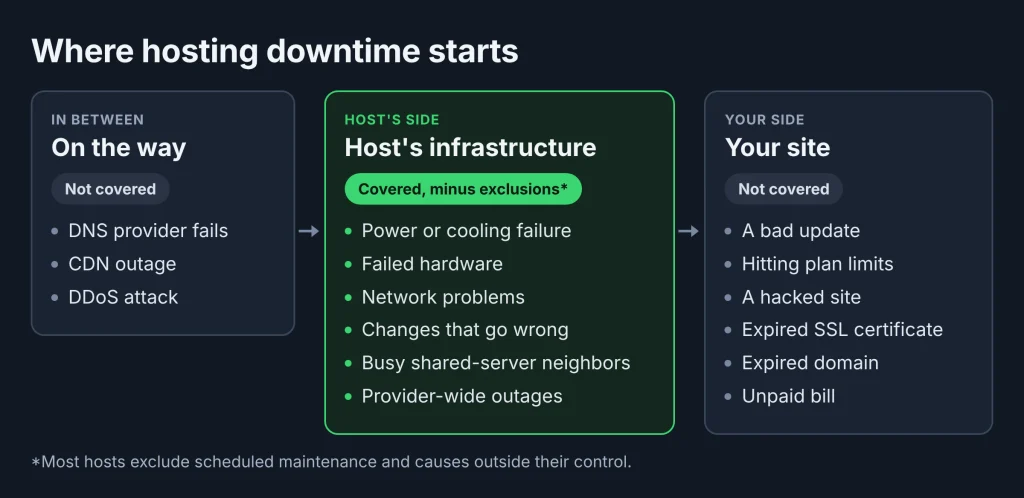
Problems on the host’s side
Power is the biggest one. It caused 45% of data center operators’ most recent impactful outages in 2025, according to Uptime Institute’s 2026 outage analysis.
- Power and cooling: A failed power feed, UPS, or cooling system in the data center.
- Hardware: A failed disk, power supply, or server.
- Network: Outages and routing problems on the host’s network.
- Changes that go wrong: Maintenance, upgrades, or network changes that break something or take longer than planned.
- Busy neighbors on shared servers: Many hosts now cap each account’s CPU, memory, and processes. That makes it less likely than it used to be.
- Provider-wide outages: An incident that hits a whole data center, region, or service.
One incident can take millions of sites offline at once. In March 2021, a fire at an OVHcloud data center in Strasbourg took about 3.6 million websites down.
Problems on your side
- A bad update: A plugin, theme, or code change breaks the site.
- Plan limits: Your site hits its CPU, memory, or process limits, often during a traffic spike. The host then slows it down or shows visitors an error such as 503 or “508 Resource Limit Is Reached”.
- A hacked site: Your host suspends it, Google flags it with a warning, or attackers deface it.
- An expired SSL certificate: Browsers show a full-page security warning instead of your site. On sites that use HSTS, visitors can’t click past it.
- An expired domain: The registrar stops sending visitors to your host, often showing a parking page instead, and your email stops too.
- An unpaid bill: Hosts suspend accounts for it, so the whole site goes down.
Problems in between
- Your DNS provider or CDN. If either one fails, visitors can’t reach your site even though the server is fine. During Cloudflare’s outage on November 18, 2025, visitors saw an error page instead of its customers’ sites.
- DDoS attacks. A flood of fake traffic can knock a site or a host offline. Hosting guarantees usually exclude them.
For instance, if a WordPress update takes your site down for an hour, your visitors see an hour of downtime. Your host’s uptime record doesn’t change.
Uptime by hosting type
The type of hosting decides who shares your server and who fixes what. How much redundancy you get depends on the plan and how the site is set up.
| Hosting type | What can take it down | Built-in redundancy | Who fixes what | Example guarantee |
| Shared | Hitting your plan’s limits, or a busy neighbor if the host doesn’t cap each account | Usually none, since many sites share one server | Host: the server. You: your site’s code and plugins | Hostinger: 99.9% a month |
| VPS | Your own server setup, or a fault on the physical server it shares | One virtual server. Some platforms move it to healthy hardware when parts fail | Host: hardware and network. You: everything inside the server, unless it’s managed | Hostinger: 99.9% a month |
| Cloud servers, such as AWS EC2 | Your setup (one instance is one copy of your site), or an incident across a whole region | Only what you build, such as copies in two or more zones | Provider: the infrastructure. You: the setup and everything on it | AWS EC2: 99.99% a month across two or more zones, 99.5% for one instance |
| Dedicated | A hardware fault, until the part is replaced and the server restored | One machine, sometimes with spare parts inside, such as a second power supply | Host: hardware. You: the operating system and software, unless it’s managed | OVHcloud (US): 99.9% to 99.99% a month, by server range |
| Managed WordPress | Plugin, theme, and update errors, which guarantees don’t cover | Depends on the plan | Host: the server, platform, and backups. You: plugins, themes, and custom code | Kinsta: 99.9% a month. WP Engine: 99.95%, or 99.99% on Business and Enterprise |
Hostinger uses the same 99.9% for its shared and VPS plans, and every example above sits between 99.5% and 99.99% a month. So the hosting type changes who fixes what more than the number on paper.
Web hosts’ “cloud hosting” plans are a different product from cloud servers. The host manages them for you, and Hostinger’s comes with the same 99.9% guarantee.
Guarantees change and differ between plans from the same host. Read the agreement for the plan you’re buying.
How hosting uptime guarantees and SLAs work
An uptime guarantee is usually part of a service level agreement (SLA). That’s the contract that says what the host promises and what you get if it misses.
What’s measured
Under a hosting SLA, the host decides whether its servers or network were available.
Hostinger’s hosting agreement, for example, says the host alone determines whether it met the guarantee in a given month. That figure doesn’t show whether your pages loaded correctly.
To claim an AWS credit, the Amazon Compute SLA asks for request logs that document the errors and back up your claimed outage. That’s hard to do without monitoring of your own.
Some hosts only go by their own records. SiteGround’s terms say it won’t accept third-party reports as evidence for compensation. Your own monitoring still shows how often the host falls short, which is what you need to decide whether to stay.
What’s excluded
Hosting SLAs list exclusions, events that don’t count against the guarantee. Hostinger’s agreement lists 11, including:
- Scheduled maintenance
- DDoS attacks and other causes outside the host’s control
- Problems caused by your own code, scripts, or third-party apps
- Problems at your internet provider, DNS, or browser caching
- Outages that only affect email or FTP access
Other hosts leave out even more. SiteGround also excludes emergency maintenance and infrastructure or software failures it fixes in under an hour, and Kinsta excludes power failures and outages at outside providers.
What you get back
When a host misses its guarantee, you can typically claim a service credit. It’s a share of that month’s fee, usually taken off a future bill.
- Hostinger guarantees 99.9% a month. A missed month earns a credit of 5% of that month’s hosting fee, which can only be spent on Hostinger products. You have to claim within 30 days.
- AWS guarantees 99.99% a month for EC2 instances that run in two or more availability zones in the same region. Below 99.99%, the credit is 10% of that month’s EC2 charges in the region. It rises to 30% below 99.0% and 100% below 95.0%. You have to request it by the end of the second billing cycle after the incident.
Say your shared hosting plan costs $10 a month. If the host misses its guarantee, a 5% credit gives you back 50 cents.
The sales or sign-ups you lost while the site was down are usually worth far more, and there are hidden costs of downtime on top of those.
How to check your host’s real uptime
To check your host’s real uptime, monitor your site from outside the host’s network, with a service that isn’t your host. (Like UptimeRobot, wink wink.)
1. Sign up and add a website monitor
Sign up with your email address (or with a Google or GitHub account). It takes about 30 seconds, and you don’t need a credit card.
The steps below all work on the Free plan, with checks every 5 minutes.
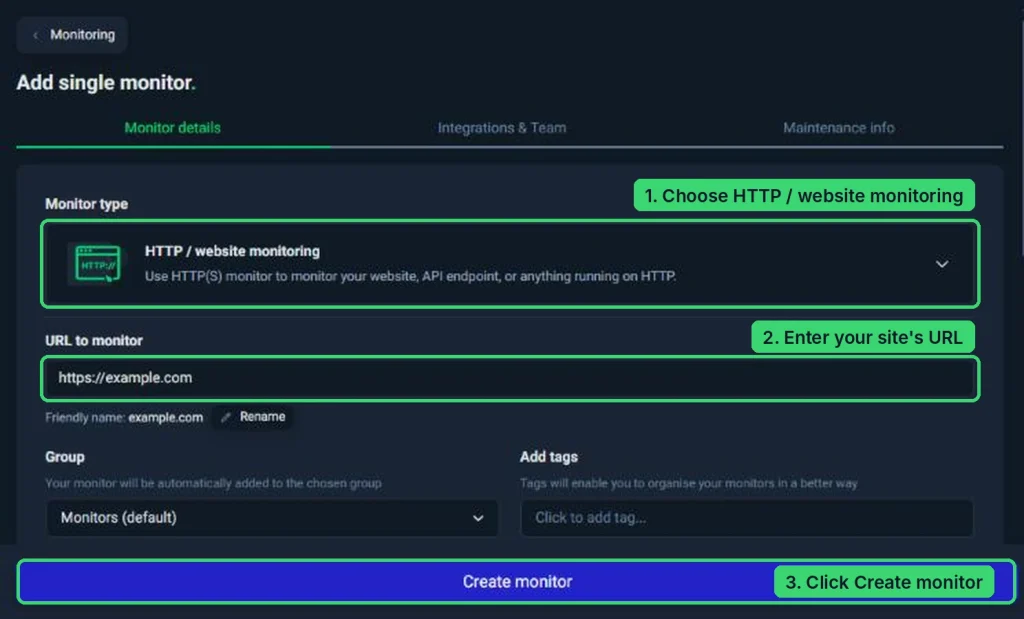
Then click New, choose HTTP / website monitoring, enter your site’s URL, and click Create monitor. That’s it.
A website monitor checks that the page answers with a healthy status code and alerts you when it doesn’t.
When a check fails, UptimeRobot re-checks the failure from a different data center in the same region before the monitor goes down.
2. Add a keyword monitor
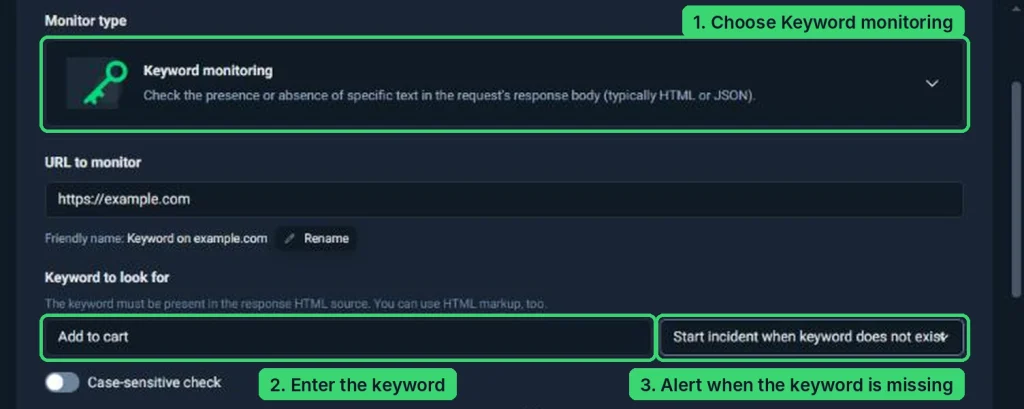
A page can return 200 OK and still show an error. A keyword monitor checks the page’s HTML for a word that should always be there, such as your site name or “Add to cart”. Choose “Start incident when keyword does not exist” to get an alert when the word goes missing.
3. Monitor the server itself
If your host allows ping requests, add a ping monitor on your server’s IP address. If it doesn’t, a port monitor on port 443 works too.
Some hosts and firewalls only accept checks from known addresses. In that case, add our IP addresses to the allowlist. We keep that list up to date.
If the website monitor goes down while the ping or port monitor stays up, the server is still reachable. Check the web server, the database, and your site next. If both go down, start with the host.

4. Choose who gets alerted
Pick email, the mobile app, or an integration such as Discord, so the right person hears about an outage right away. UptimeRobot has 20+ integrations and notification channels, including Slack, Microsoft Teams, PagerDuty, and webhooks, and which ones you can use depends on your plan.
5. Keep the evidence
Each incident in your dashboard shows when it started and how long it lasted. Screenshot the incident when you file a credit claim. The Free plan keeps 3 months of data.
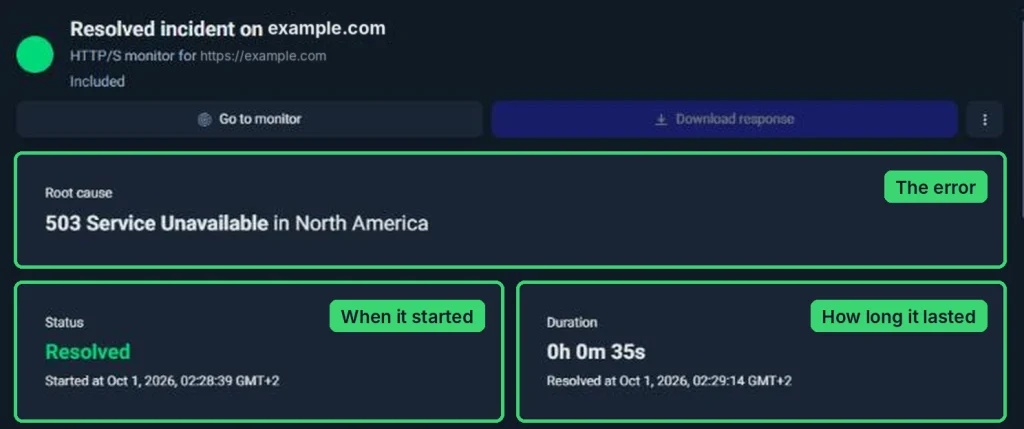
Compare your data with your host’s public status page. If your monitors show an outage the status page doesn’t mention, keep both records for your ticket.
What to do when your host doesn’t deliver
If your monitoring shows more downtime than the guarantee allows, what you can get back depends on your host’s terms.
At Hostinger and AWS, for example, credits aren’t automatic. You have to ask, inside a set window, with details of the outage.
- Confirm the outage. Compare your website and ping monitors to see whether the server or only the site went down. Downtime that starts in your own site doesn’t count against the guarantee.
- Check the host’s status page. See whether they’ve already reported an incident, and note the times they give.
- Read the SLA for your plan. Check how the host measures uptime and which exclusions could apply to your outage. Then check how the credit is calculated, whether it’s capped, and how and by when you have to claim.
- Open a support ticket. Include the start time and duration from your monitoring, plus the error your monitor recorded. Attach the incident screenshots.
- Claim the credit. Do it inside the claim window, which is 30 days at Hostinger. AWS gives you until the end of the second billing cycle and asks for request logs that document the errors.
- Escalate if the answer doesn’t match your data. Reply with your monitoring records and the SLA clause. Ask for a review by a supervisor or the billing team.
- Track repeat incidents. Log every month the host misses its guarantee. A miss three months in a row, for example, is a pattern worth acting on.
- Plan your move. If the pattern continues, check your contract’s renewal date and notice period first. Then take a full backup, set up the site on a new host, and test it. Lower your DNS TTL a day or two before the switch, so the change reaches visitors faster. Switch DNS during a quiet period, and keep monitoring running through the move.
Questions to ask before choosing a host
Before you pick a host, find out what its SLA promises and what it leaves out. Most of the answers are in the SLA and the terms of service, so you rarely need a support ticket.
Paste those pages into an AI assistant and ask it to pull out the points below. Then check each answer against the original text, since AI tools can get details wrong.
The points worth checking:
- What uptime is guaranteed, and is it measured per month or per year?
- What’s excluded, and is maintenance announced in advance?
- How big is the credit, is there a cap, and how long do you have to claim?
- Is there redundancy, or does everything run on one server?
- Is there a public status page with incident history?
Still shortlisting hosts? We grouped the best web hosting providers by category.
How to keep your site up on any host
A few habits cut the downtime that starts on your side, whichever host you’re on.
- Size the plan for your traffic. A site that keeps hitting its CPU or memory limits slows down and fails under traffic spikes. Check the resource usage in your host’s control panel now and then, and upgrade before a launch or a sale.
- Use caching and a CDN. They take load off your server, and a CDN can keep serving cached pages during short outages.
- Test updates on a staging copy. Try plugin, theme, and core updates there before you apply them to the live site. Many managed WordPress hosts include one-click staging.
- Keep backups off the server, and test a restore. A backup stored on the same server disappears with it. And a backup you’ve never restored may not work when you need it.
- Set your domain and SSL certificate to auto-renew. Either one expiring cuts visitors off from your site, even when the server is fine.
- Plan who does what in an outage. Decide who gets the alert and who contacts the host. Then pick where you’ll update customers, for example on a status page.
If your site has outgrown a single server, look at redundancy, load balancing, and failover. We cover all three in the complete guide to website downtime.
Keep your own uptime record
A host’s uptime guarantee covers its own servers, and it pays out only when you claim in time. Your own monitoring covers the rest. It shows whether visitors can reach your site and how long each outage lasted, and it gives you the records a claim needs.
UptimeRobot’s Free plan includes 50 monitors with 5-minute checks. That’s enough to watch your site and your server from outside your host, at no cost.
-
For a site where downtime costs sales, look for 99.99%, which leaves a host about 4 minutes of downtime a month. A 99.9% guarantee, such as Hostinger’s, allows ten times as much. Whatever the plan promises, measure what you get with monitoring from outside the host.
-
Set up an external monitor that checks your site from outside your host, such as an UptimeRobot HTTP monitor. Add a ping or port monitor on the server’s IP address to tell server problems from website problems. Compare the results with your host’s status page, and keep the incident records as evidence.
-
You can usually claim a service credit, a share of that month’s fee taken off future bills. Claim inside the host’s window, such as 30 days at Hostinger, with the outage times from your monitoring. Credits rarely cover what the downtime cost you. At Hostinger, the credit is 5% of the month’s fee.
-
Redundancy matters more than the hosting type. A site on one machine goes down when that machine does, whether it’s a shared server, a VPS, or a dedicated server. The exception is a host that can move it to other hardware. Cloud servers spread across two or more availability zones survive a zone failure. AWS guarantees 99.99% a month for EC2 set up that way, against 99.5% for a single instance, but you build that setup yourself.
-
Treat them as a starting point. The host measures its own servers, and its numbers leave out excluded events and problems inside your site. An outside monitor logs each outage’s start time and duration, so you can compare the host’s numbers with yours and back up a ticket.